How to undo send mail on iphone, ipad and mac (ios 16)
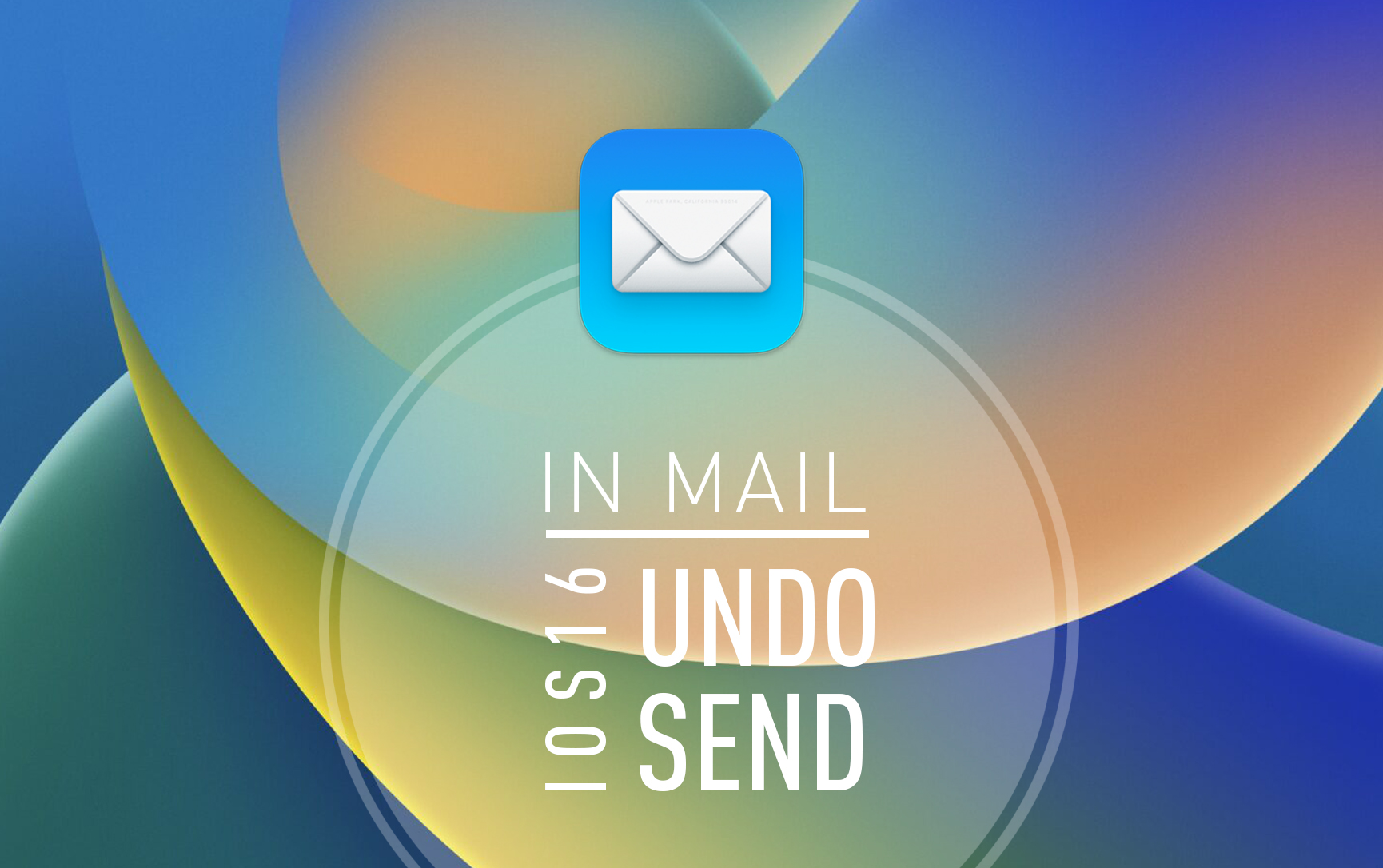
Users are finally able to unsend email on iPhone when using Mail! All this thanks to the new iOS 16, iPadOS 16 and macOS 13 Ventura software versions. They include a new Undo Send feature for the stock Mail app.
This allows you to stop an email from sending for up to 10 seconds after you tap Send. The option is very helpful if you accidentally pressed the wrong button or you realize that you’ve made a mistake and want to correct it.
How To Undo Send Mail
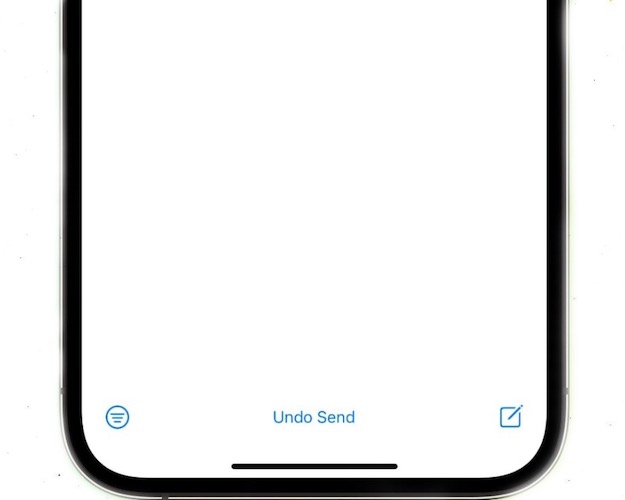
This new feature is straightforward. An Undo Send option becomes available after you tap Send in mail. The option stays available for 10 seconds, allowing you to recall the email if it was a mistake.
It’s available on iPhone, iPad or Mac running iOS 16, iPadOS 16, macOS 13 or later.
Unsend Email On iPhone
Undo Send is not a revolutionary new feature if you’re using Gmail. Google is already providing it to iOS and iPadOS users that are using their third-party mail client.
More, Google’s option is even better fine tuned because Undo Send in Gmail allows you to edit the unsending period to 5, 10, 20 or 30 seconds.
Fact: Apple might decide to provide the same timeframe customization in future software updates.
How Undo Send Mail Works
The feature basically delays sending of emails by 10 seconds. The message only leaves your device after ten seconds. If you decide to unsend it, the send command is cancelled.
Technically there is no real way of actually recalling an email message once its actually sent!
Do you use Undo Send on iPhone? What’s your default mail client, Mail or Gmail? What’s your feedback about this new feature. Use the comments section!

-
 -18%
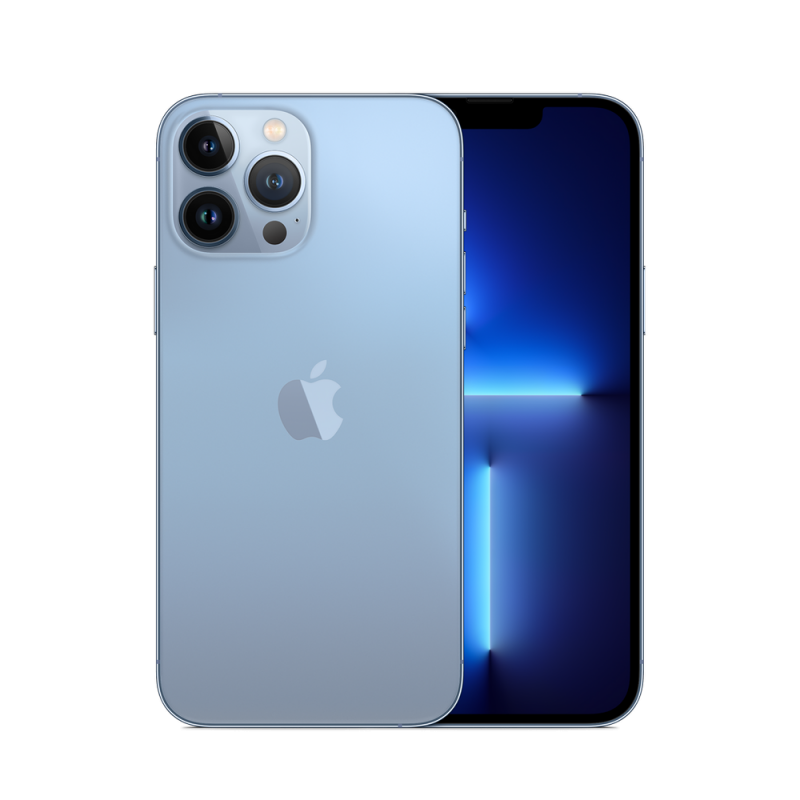
Apple - iPhone 13 Pro Max 256GB Fully Unlocked-6.7-Inches - Sierra BlueSpecial Price $1,304.55 Regular Price $1,591.00
-18%
Apple - iPhone 13 Pro Max 256GB Fully Unlocked-6.7-Inches - Sierra BlueSpecial Price $1,304.55 Regular Price $1,591.00 -
-13%
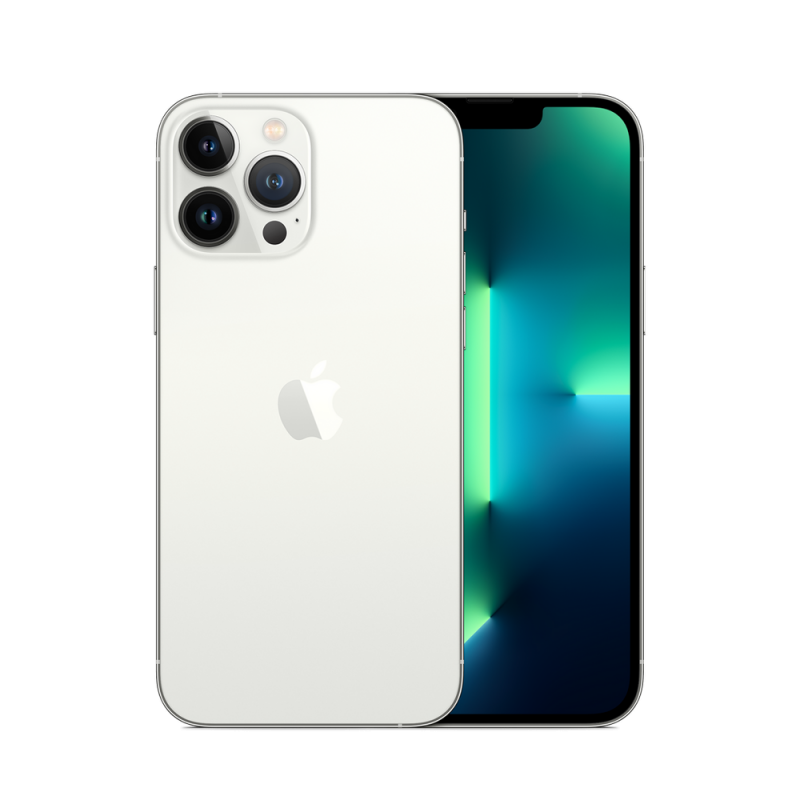
Apple - iPhone 13 Pro Max 256GB Fully Unlocked-6.7-Inches - SilverSpecial Price $1,377.00 Regular Price $1,591.00
-
-14%
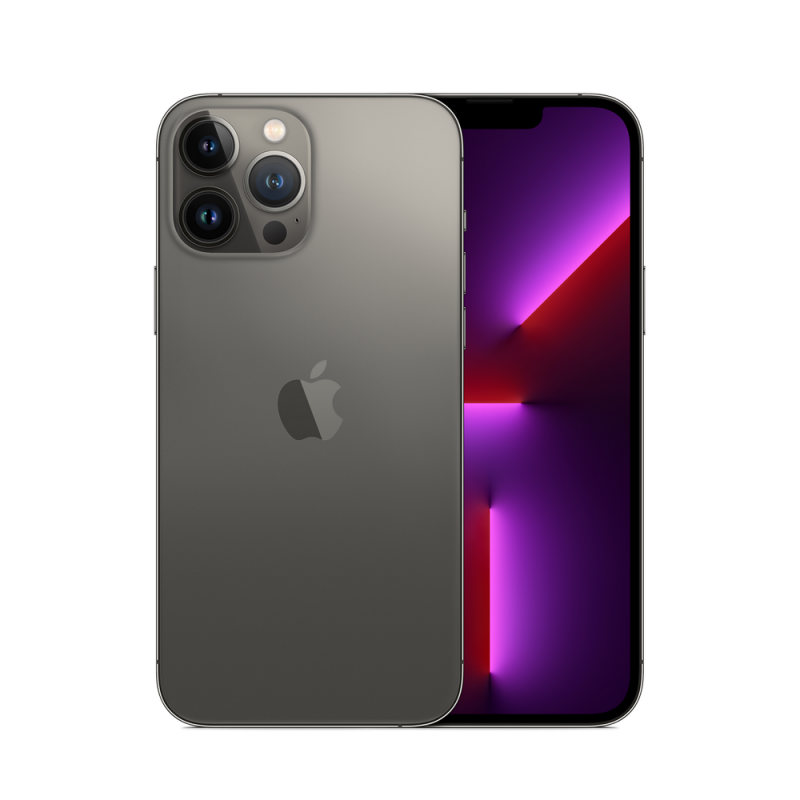
Apple - iPhone 13 Pro Max 256GB Fully Unlocked-6.7-Inches - GraphiteSpecial Price $1,362.50 Regular Price $1,591.00