OpenClaw AI: Step-by-Step Installation Guide + Must-Have Skills for 2026 – Become Your Own Jarvis
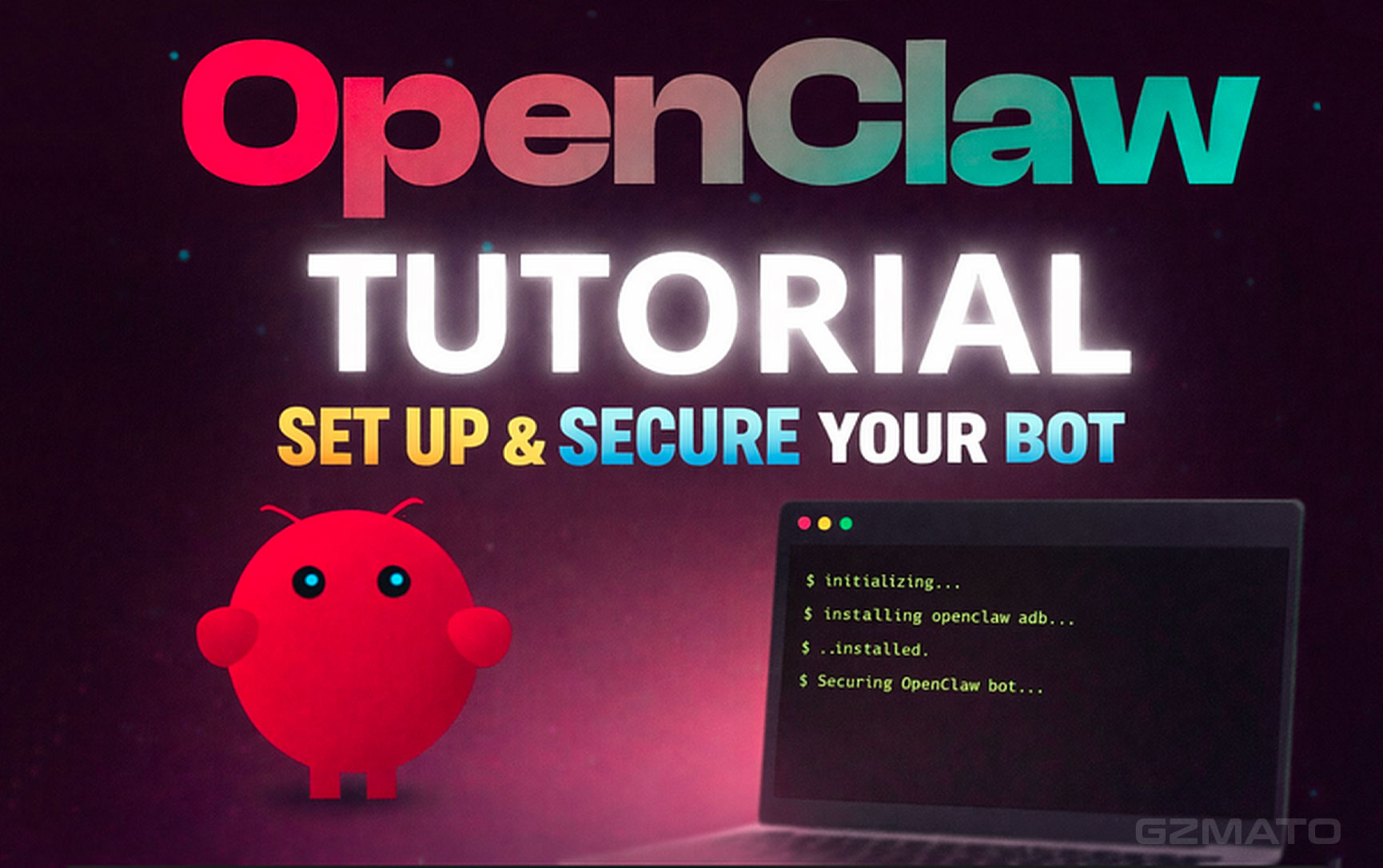
- OpenClaw AI: Your Personal Jarvis in 2026 – Full Setup & Skills Guide
- What Is OpenClaw? The Lobster-Powered AI Agent
- Step-by-Step Installation: Windows & Ubuntu/Linux
- Best Model Choices for OpenClaw in 2026
- 9 Must-Have Skills: Installation & Use Cases
- Real-World Use Cases: Work & Daily Life
- Safety Warnings: Keyboard/Mouse Control Risks
- Verdict: Exciting Tool or Still Experimental?
- Shop AI-Optimized Accessories at Gzmato
March 8, 2026 – OpenClaw is the open-source AI agent with a lobster icon that's gaining massive attention for its ability to control your keyboard and mouse like a real Jarvis. This beginner-friendly guide covers the latest installation (Windows + Ubuntu/Linux), best models, must-have Skills, practical examples, and critical safety warnings.
OpenClaw AI: Your Personal Jarvis in 2026 – Full Setup & Skills Guide
OpenClaw lets AI directly interact with your computer by moving the mouse, clicking buttons, and typing – no more copy-paste limits. While powerful, it's still experimental. Here's everything you need to install, configure, and use it safely on both Windows and Ubuntu/Linux.
What Is OpenClaw? The Lobster-Powered AI Agent
OpenClaw is an open-source AI OS agent that combines vision models (to “see” your screen) with automation tools to perform tasks like a human. It can open apps, browse websites, fill forms, write code, and more. The lobster icon has become its meme symbol in the community. In 2026, it's one of the most ambitious open-source projects aiming for true “hands-free” computing.
Step-by-Step Installation: Windows & Ubuntu/Linux
Windows Installation (One-Click Method)
- Open PowerShell as administrator (Start → search PowerShell → right-click → Run as administrator).
- Install latest version:
iwr -useb https://openclaw.ai/install.ps1 | iex - Upgrade existing install (if needed):
npm install -g openclaw@latest - Verify version:
openclaw --version(should show v2026.3.7 or higher). - Start gateway:
openclaw gateway - Grant screen recording & input permissions in System Settings.
Ubuntu / Linux Installation (Recommended One-Click Method)
- Install prerequisites:
sudo apt update && sudo apt install -y curl git nodejs npm python3 python3-pip - Run the official one-click installer:
curl -fsSL https://openclaw.ai/install.sh | bash - Verify version:
openclaw --version(should show v2026.3.7 or higher). - Start gateway:
openclaw gateway(may need sudo on first run:sudo openclaw gateway). - Grant permissions: Allow screen recording/input in system privacy settings.
- Optional: Install browser automation deps:
npx playwright install chromium
Linux Notes: If using Wayland, switch to X11 for better input control. For GPU/local models, install NVIDIA drivers + CUDA.
Best Model Choices for OpenClaw in 2026
For best browser automation and intelligence, use OpenAI models (GPT-5.3 Codex or 5.4 Codex are currently top-rated). Steps:
- Create OpenAI API key: https://platform.openai.com/settings/organization/api-keys
- In OpenClaw settings → select OpenAI provider → paste key.
Alternative: Use local models like LLaVA/BakLLaVA for privacy (slower). Check https://pinchbench.com/ for latest model rankings.
9 Must-Have Skills: Installation & Use Cases
Run openclaw onboard to install core Skills. Then add these 9 essentials via npx clawhub@latest install [skill-slug]:
- agent-browser: Human-like browser control (Playwright/Puppeteer backend). Use case: Log into sites, fill forms, scrape data.
- tavily-search: Real-time web search. Use case: Get latest news/prices without outdated knowledge.
- find-skills: Auto-searches & installs needed Skills. Use case: “I need to organize Google Docs” → finds & installs tools.
- weather: Free, no-API weather queries. Use case: Plan trips or automate reminders.
- self-improving-agent: Remembers past actions & improves. Use case: Long-term task automation.
- summarize: Summarizes web/docs/emails. Use case: Digest long reports quickly.
- skill-vetter: Scans Skills for security risks. Use case: Safe community Skill installation.
- proactive-agent: Thinks ahead & plans. Use case: Proactive calendar/email management.
- gog: Full Google suite control (Gmail, Drive, Docs). Use case: Automate office workflows.
Real-World Use Cases: Work & Daily Life
- Work: “Fill this spreadsheet from email attachments” – opens Gmail, downloads files, copies data to Excel.
- Research: “Summarize latest AI news” – searches web, extracts key points.
- Daily: “Book a flight on Delta” – navigates site, fills form (success ~70% on familiar sites).
- Creative: “Create a Canva poster” – opens Canva, adds text/images.
Safety Warnings: Keyboard/Mouse Control Risks
- Security: Full control = malware risk. Only run trusted code; use VM/sandbox.
- Privacy: Cloud models send screenshots – prefer local models.
- Legal: Automating logins may violate TOS (banking, government sites).
- Stability: Misclicks can delete files or send wrong messages – supervise critical tasks.
Best practice: Sandbox environment + kill switch (Ctrl+C) + never use on sensitive accounts without review.
Verdict: Exciting Tool or Still Experimental?
OpenClaw brings us closer to true AI assistants with direct computer control. With the right Skills and models, it saves hours on repetitive tasks. But it's still unstable and risky – perfect for tinkerers, not yet for mission-critical work.
Shop AI-Optimized Accessories at Gzmato
Fast shipping, 1-year warranty – keyboards, mice, monitors & more for your AI setup
Special Offer: Use code GZMOPENCLAW26 for 10% off!
Shop Now →Data Sources & Methodology (as of Mar 8, 2026):
- OpenClaw official GitHub & docs
- Community tutorials (X, Reddit, pinchbench.com)
- User feedback & SkillHub listings
- Gzmato AI accessory recommendations

- openclaw installation guide
- openclaw ubuntu linux install
- openclaw skills
- openclaw agent-browser
- openclaw tavily search
- openclaw jarvis ai
- openclaw keyboard mouse control
- openclaw 2026 tutorial