PS5 Backup Guide: How to Back Up and Restore Data to USB (2026)

PS5 Backup Guide: Protect Your Saves, Screenshots, and Settings
Your PS5 holds hundreds of hours of progress, irreplaceable screenshots, and carefully tuned settings. Whether you are upgrading to a PS5 Pro, preparing for a storage swap, or simply want a safety net, a USB backup is the fastest and most reliable way to protect everything offline—no PlayStation Plus subscription required.
This guide covers the official USB backup and restore process for PS5 (including Slim and Pro models), based on Sony's current system software. It takes about 30–60 minutes for a typical library, and the only requirement is a properly formatted USB drive.
Critical Warnings Before You Start
Sony's official support page lists these warnings explicitly. Ignoring them can result in permanent data loss or hardware damage [citation:1][citation:2].
- Never power off during backup or restore. Doing so can corrupt data or damage the console or USB drive.
- Restore erases all console data. The PS5 wipes its internal storage before restoring. Erased data cannot be recovered.
- Account binding matters. If you have never signed into PlayStation Network, you can only restore to the same console. To restore on a different PS5, you must sign into the same PSN account used for the backup.
- Extended storage is excluded. Games and apps on an M.2 SSD or USB extended storage drive are not included in the backup. Reconnect or reinstall the drive after restoring.
- Trophies are not backed up. Sync your trophy status with PSN before backing up.
What Gets Backed Up (and What Doesn't)
Understanding the scope of a USB backup prevents unpleasant surprises. Here is the official breakdown [citation:1][citation:2]:
| Data Type | Included? | Notes |
|---|---|---|
| Games & Apps | Yes | Reinstalled during restore. Does not include games on extended storage. |
| Saved Data | Yes | All profiles and game progress. |
| Screenshots & Video Clips | Yes | Media gallery items. |
| System Settings | Yes | Account, privacy, and system configurations. |
| Trophies | No | Sync via PSN separately before backup. |
| M.2 SSD / USB Extended Storage | No | Reattach the drive after restore; games remain playable. |
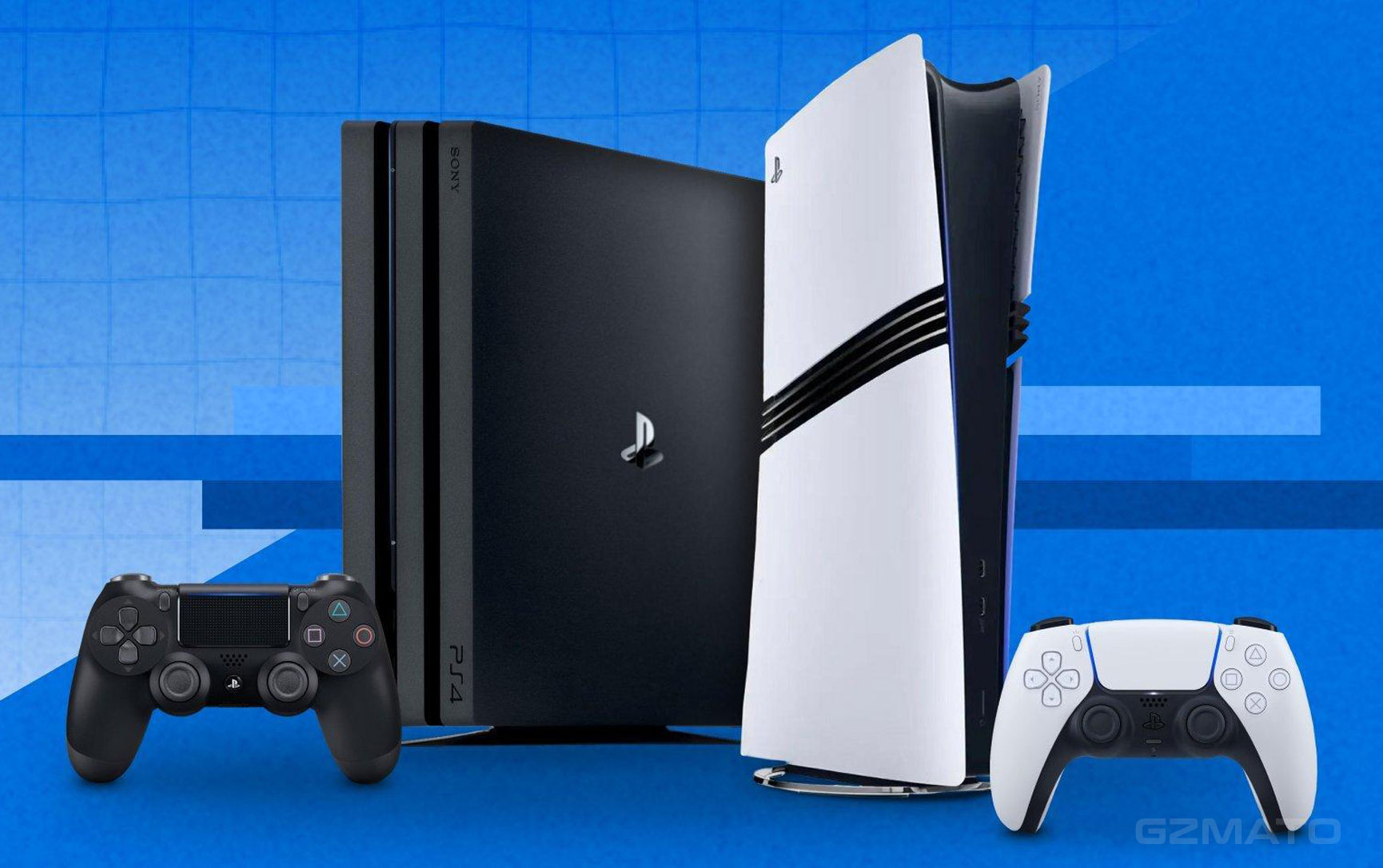
If you are migrating from a base PS5 or Slim to a PS5 Pro, the USB backup method is the most reliable transfer path. Sony's process is identical across all three models [citation:1]. Just ensure the PS5 Pro's system software version is the same or newer than the source console before restoring.
Step-by-Step: Back Up PS5 to USB
Preparation: Format your USB drive to FAT32 or exFAT. Note that a drive used for extended storage is formatted differently and cannot be used for backup data [citation:1]. Connect the drive to a USB port on the PS5.
- From the home screen, go to Settings > System.
- Select System Software > Back Up and Restore > Back Up Your PS5.
- If multiple USB drives are connected, select the correct one.
- Choose the data types to include (all, or selective: games, saves, media, settings).
- Review the file name and size. Add an optional description.
- Select Back Up. The console restarts automatically and begins the backup.
- When the "Backup complete" screen appears, select OK. The console restarts again and returns to the home screen.
Step-by-Step: Restore PS5 from USB
Critical prerequisite: The PS5's current system software must be the same version or newer than the version at the time of backup [citation:1].
- Connect the USB drive containing the backup to the PS5.
- Go to Settings > System > System Software > Back Up and Restore > Restore Your PS5.
- Select the USB drive and choose the data to restore.
- Select Restore > Yes. The console restarts and begins the restore.
- When complete, the console restarts again.
- Important: Restoring disables Console Sharing and Offline Play. Re-enable this setting to regain access to your subscriptions and content [citation:1].
2026 Best Practices & Troubleshooting
- Use USB 3.0 or faster. Backups over USB 2.0 are painfully slow. A USB 3.0 drive (or better) makes a noticeable difference.
- Label your drives. Keep the backup drive separate from your extended storage drive. Using one drive for both is not possible—the formats conflict [citation:1].
- Back up saves before major events. Before a system update, a new game launch, or a hardware swap, run a quick selective backup of saved data only.
- PS Plus cloud is not a substitute. Cloud saves are convenient but only cover saved data. For a full system image including screenshots and settings, USB is the only offline option.
- If the restore fails: Verify the USB format (FAT32/exFAT), check that the PS5 software version matches or exceeds the backup version, and try a different USB port (preferably the front USB-A port).
The same USB backup method works for PS4-to-PS5 transfers. A PS4 system backup can be restored directly to a PS5, carrying over compatible saved data and media [citation:1].
Key Takeaways
| # | What You Need to Know About PS5 USB Backup |
|---|---|
| 1 | FAT32 or exFAT USB drive required. Extended storage drives are formatted differently and cannot be used for backup data. |
| 2 | Backup includes games, saves, screenshots, and settings. It excludes extended storage content (M.2 SSD/USB) and trophies. |
| 3 | Restore erases all console data. Verify your backup before proceeding. Erased data cannot be recovered. |
| 4 | Account binding affects restore. To restore on a different PS5, you must sign into the same PSN account used for the backup. |
| 5 | Re-enable Console Sharing after restore. The restore process disables it; you must turn it back on manually. |
| 6 | Works across PS5, PS5 Slim, and PS5 Pro. Ensure the target console's system software is the same version or newer than the backup. |
| 7 | Selective backup saves time. If you only need saves and settings, skip games to cut the process from hours to minutes. |
- PlayStation Official Support — PS5 backup and restore documentation, USB format requirements, account binding, extended storage exclusion [citation:1][citation:2]
- PlayStation System Software Notes — Version compatibility for restore operations
- Gzmato — PS5 accessory and storage recommendations
External Hard Drives | M.2 SSDs | USB Flash Drives | Controllers | Headsets
Special Offer: Use code TECH2026 for a discount on your first order!
Shop PS5 Accessories at GzmatoTell us your PS5 model and library size, and we'll help you pick the right drive—or answer any backup questions you have. Chat with us or open a request.
- PS5 backup
- PS5 USB backup
- PS5 restore
- PS5 save data backup
- PS5 Pro transfer
- PS5 extended storage backup
- Gzmato