How to Back Up and Restore PS5 Console Data: USB Guide, Tips & Warnings 2025
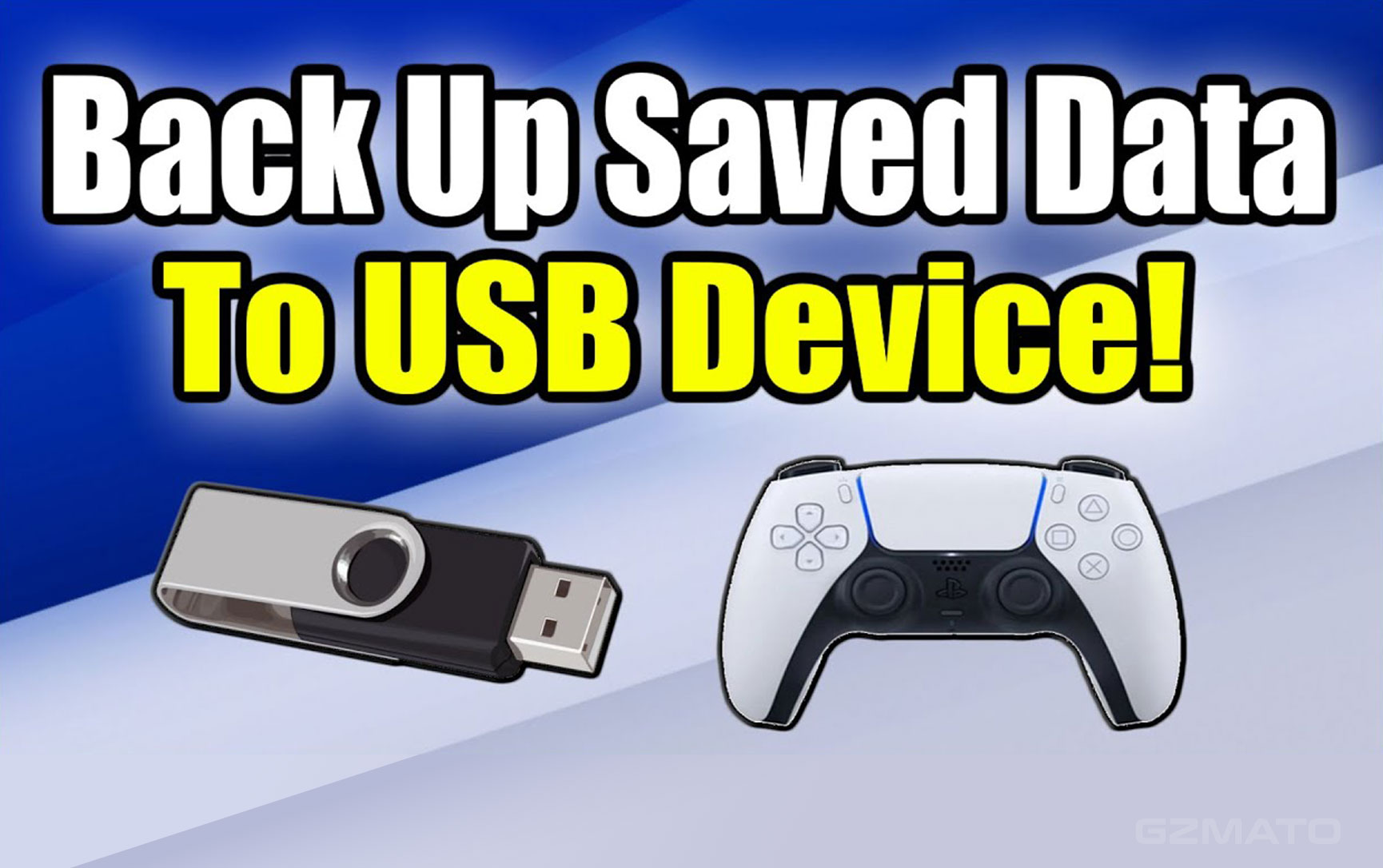
Backing up your PS5 data is essential to avoid losing progress in games, screenshots, or settings. This guide covers USB-based backup and restore for PS5 (Slim/Pro models, 2025 update), based on official PlayStation methods. It's quick, free, and works offline—no cloud needed. Always use a FAT/exFAT formatted USB drive (at least 250GB recommended).
Important Warnings Before Starting
Follow these to prevent data loss or console damage:
- Never turn off your PS5 during backup/restore — it can corrupt data or damage hardware.
- Restore erases all console data — double-check backups first. Erased data can't be recovered.
- PSN login required for multi-console restore — Non-PSN users can only restore to the original console.
- Extended storage (M.2 SSD/USB) not included — Reconnect drives after restore to access games/apps.
- Trophies not backed up — Sync them via PSN before starting.
What PS5 Data Can Be Backed Up
USB backups include all user data but exclude extended storage content. Here's what's covered:
| Data Type | Included? | Notes |
|---|---|---|
| Games & Apps | Yes | Reinstalls on restore; doesn't include downloads from extended storage |
| Saved Data | Yes | All profiles, game progress |
| Screenshots & Clips | Yes | Media gallery items |
| Settings | Yes | System, account, privacy configs |
| Trophies | No | Sync via PSN separately |
| Extended USB/M.2 SSD | No | Reattach after restore |
How to Back Up PS5 Data to USB Drive (Step-by-Step)
Prep: Format USB to FAT/exFAT via PS5 Settings > Storage. Connect to front USB port.
- From home screen, go to **Settings > System > System Software > Back Up and Restore > Back Up Your PS5**.
- Select your USB drive (if multiple connected).
- Choose data types (all or selective: games, saves, media, settings).
- Review file name/size, add description if needed.
- Select **Back Up**—PS5 restarts automatically.
- Wait for "Backup complete"—console restarts to home screen.
How to Restore PS5 Data from USB Drive (Step-by-Step)
Prep: Ensure PS5 software is same/newer version than backup. Connect USB.
- Go to **Settings > System > System Software > Back Up and Restore > Restore PS5**.
- Select USB drive.
- Choose data to restore (selective or all).
- Confirm **Restore > Yes**—PS5 restarts.
- Wait for completion—console restarts to home.
- Re-enable Console Sharing/Offline Play if needed.
Tips & Best Practices for PS5 Backups
- Frequency: Back up monthly or after major play sessions—automate via PS Plus cloud for saves.
- Storage: Use 1TB+ USB 3.0 for speed; label drives clearly.
- PS4 to PS5 Transfer: Use same USB method—PS4 backups restore directly to PS5.
- Cloud Hybrid: PS Plus ($10/month) auto-syncs saves; USB for full system.
- Troubleshooting: If error, check USB format or PS5 software update.
Final Thoughts
USB backup/restore is PS5's simplest way to safeguard data—faster than cloud for large libraries. For 2025 PS5 Slim/Pro users, combine with PS Plus for hybrid protection. If issues arise, contact PlayStation support. Stay safe, gamers!
Data Sources & Methodology (as of Dec 7, 2025):
- Official PlayStation Support (playstation.com)
- PS5 System Software Update Notes (v8.00+)
- Reddit r/PS5, r/playstation (user troubleshooting threads)
- Gzmato PS5 Accessory Guides
Backing up your data regularly is a great way to ensure that important data is saved. You can back up data saved on your PlayStation®5 console storage to a USB storage drive.
Important information
- Don’t turn off your PS5™ console while backing up or restoring data. Doing this may cause data loss or corruption, or damage to your PS5 console or USB drive.
- When restoring data, your PS5 console will erase all data saved on your console. Make sure you don’t erase any important data by mistake. Erased data cannot be restored.
- Users who have never signed in to PSN can restore saved data only to the original PS5 console that was backed up. To restore saved data to another console, you must sign in on that console.
- Games and apps saved in your extended USB storage or M.2 SSD storage aren't included in backup data.
You can continue using your storage drives as is by connecting extended USB storage or installing your M.2 SSD to the PS5 console that you're restoring. - Trophies aren’t included in the backup data. Update your game status before backing up your data.
PS5 Console data you can back up
You can back up the following data:
- Games and apps
- Saved data
- Screenshots and video clips
- Settings
All user data saved on your PS5 console is included in the backup data. When you restore your backup data, all user data is restored.
If you want to save only your user data, or return only the data you need without restoring your console, it's recommended that you save that data separately from backup data.
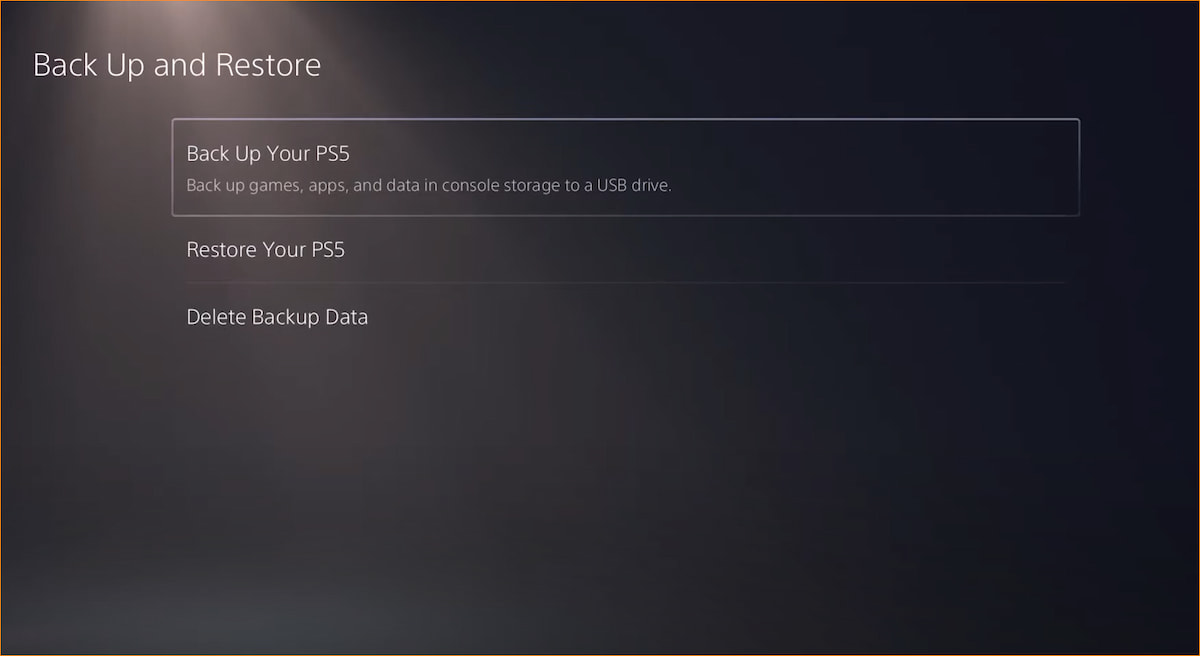
How to back up PS5 console data to a USB drive
- Connect your USB drive to your PS5 console.
FAT and exFAT formatted USB drives are supported. - Go to the home screen and select Settings > System.
- Select System Software > Back Up and Restore > Back Up Your PS5.
When there are multiple USB drives connected, select the USB drive where you want to save your backup data. - Select the type of data you want to back up, and then select Next.
The file name and file size appear. Enter a description of the backup data if necessary. - Select Back Up.
Your console restarts and back up begins. - When you see a screen displaying Backup complete. Your PS5 console will restart, select OK.
Your console restarts again and you return to the home screen.
How to restore PS5 console data from a USB drive
When you restore a PS5 from a backup, the current system software version must be the same version or newer than the version on the PS5 console when the backup was made.
- Connect your USB drive to your PS5 console.
- Select Settings > System.
- Select System Software > Back Up and Restore > Restore PS5.
When there are multiple USB drives connected, select your USB drive. - Select the data you want to restore.
- Select Restore > Yes.
Your console restarts and restore begins. When restore is complete, your console restarts again and you return to the home screen.
When you restore your PS5 console, Console Sharing and Offline Play is turned off. Configure the setting again to avoid losing access to your subscriptions and content. Please gzstuff customer support if anything we can help.
Source - PlayStation


-
 -12%
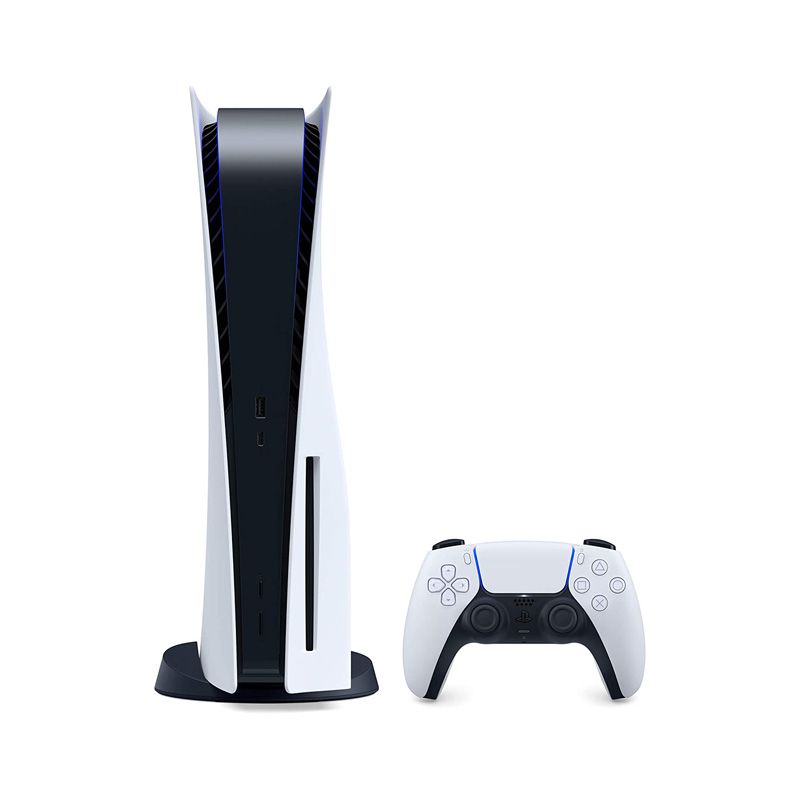
SONY - PlayStation 5 Console Chinese DVD-ROM Standard VersionSpecial Price $499.00 Regular Price $569.00
-12%
SONY - PlayStation 5 Console Chinese DVD-ROM Standard VersionSpecial Price $499.00 Regular Price $569.00 -
-9%
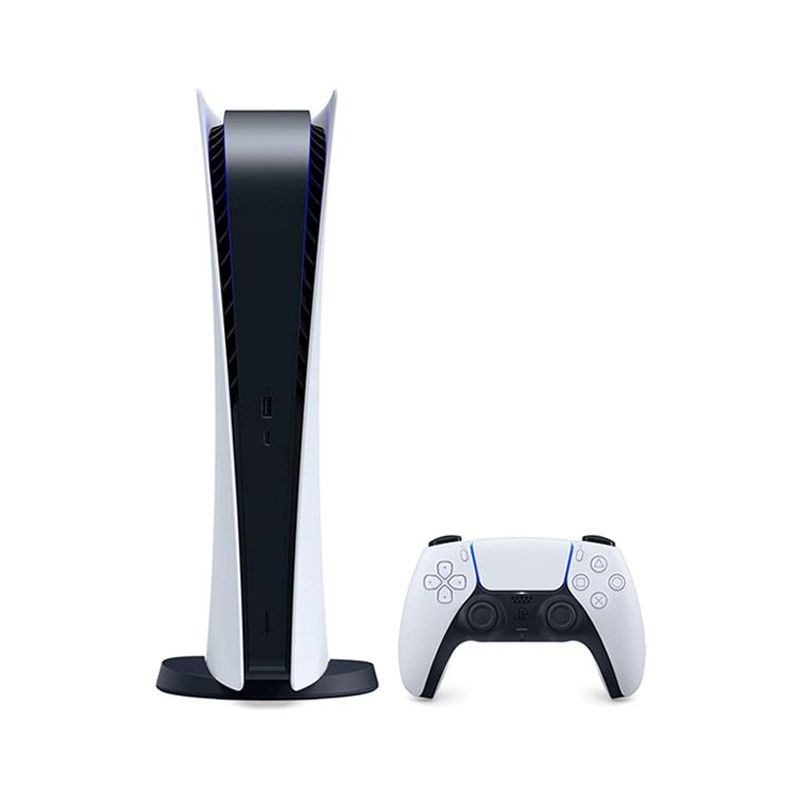
SONY - PlayStation 5 Console Chinese Digital VersionSpecial Price $399.00 Regular Price $439.00
-
-9%
SONY PlayStation 5 DualSense Edge™ Wireless ControllerSpecial Price $215.20 Regular Price $235.99
-
-4%
SONY PlayStation 5 Console Original Covers for Standard EditionAs low as $52.99 Regular Price $54.99
-
-29%
SONY - PlayStation 5 DualSense Wireless Controller – Gray CamouflageSpecial Price $70.99 Regular Price $99.99
-
-31%
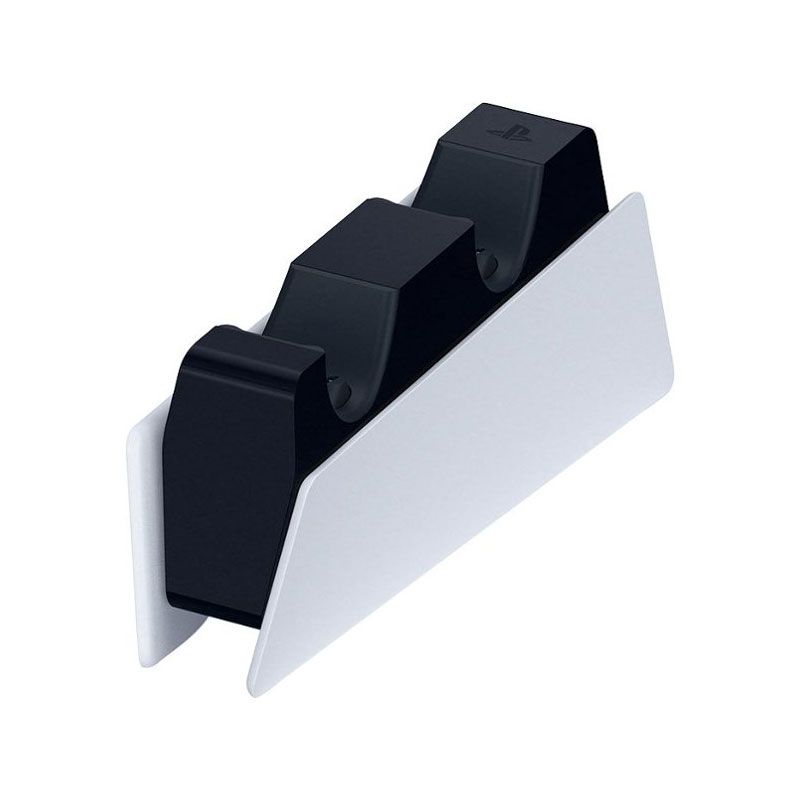
Playstation 5 DualSense Charging StationSpecial Price $45.00 Regular Price $65.00
-
-22%
SONY HD Camera, Black - PlayStation 5Special Price $69.99 Regular Price $89.99
-
-20%
Media Remote - Playstation 5Special Price $39.99 Regular Price $49.99
-
-75%
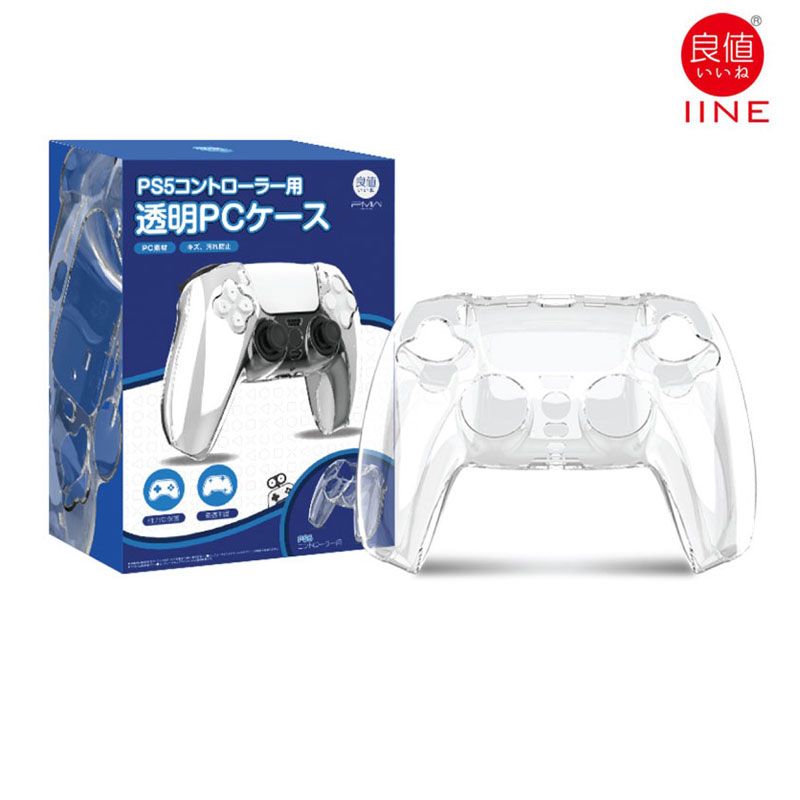
IINE Tokyo Rise Playstation 5 PS5 Dualsense Controller Joystick Transparent CaseSpecial Price $4.99 Regular Price $19.99
-
-34%
Hogwarts Legacy - PlayStation 5Special Price $46.22 Regular Price $69.99





- ps5 backup usb
- restore ps5 data
- ps5 save data transfer
- ps5 cloud saves vs usb
- ps5 data corruption warning
- backup ps5 screenshots
- ps5 system software restore