Don't Get Left Behind! Your Guide to Backing Up Windows 10 and Upgrading to Windows 11
We want to keep you informed about an important upcoming change that will affect your Windows 10 computers. Microsoft's official support for Windows 10 is ending on October 14, 2025. While your current Windows 10 PC will continue to operate, it will no longer receive crucial security updates after this date. This lack of updates can leave your system vulnerable to new online threats, which is why we strongly recommend planning your next steps now.
The best path forward for most of you is to upgrade to Windows 11. This modern operating system offers significant security enhancements, a refreshed and more intuitive user experience, and improved performance.
Before making the move, it's absolutely vital to back up your entire Windows 10 system. Think of this as creating a secure copy of everything on your computer – your files, applications, and settings. This safety net ensures that no matter what happens during the upgrade process, you can always go back to your familiar Windows 10 setup if needed.
Let's walk through the essential steps of backing up your Windows 10 system and then upgrading to Windows 11.
Step 1: Safeguarding Your Data - Backing Up Windows 10

We recommend creating a full system image as the most comprehensive way to back up your Windows 10 computer.
Why a Full System Image?
A system image creates an exact replica of your entire hard drive. This includes your operating system, all your installed programs, your personal files (documents, photos, videos, etc.), and all your customized settings. If anything goes wrong with the upgrade, or even down the line, you can restore your computer to precisely how it was at the moment you created the backup.
Using the Built-in Windows Tool
Surprisingly, the most reliable tool for this in Windows 10 is the "Backup and Restore (Windows 7)" feature:
- Connect an External Hard Drive: You'll need an external hard drive with enough free space to hold the entire contents of your computer's main drive. Make sure it has ample capacity.
- Open Control Panel: Search for "Control Panel" in your Start Menu and open it.
- Navigate to System and Security: Click on "System and Security."
- Select "Backup and Restore (Windows 7)": You'll find this option listed under the "System and Security" section.
- Click "Create a system image": This will launch the wizard to guide you through the process.
- Choose Your Backup Destination: Select your connected external hard drive as the location where you want to save the backup. Click "Next."
- Confirm Backup Contents: The wizard will show you what will be included in the system image. Typically, it will automatically select all necessary system partitions. Click "Start backup."
- Allow the Backup to Complete: This process can take a while, depending on the amount of data on your computer. Ensure your computer remains plugged in and do not interrupt the process.
- Create a System Repair Disc or USB Drive (Highly Recommended): Once the backup is finished, the wizard will likely prompt you to create a system repair disc or suggest using a USB drive. This bootable media can be essential for restoring your system if it ever fails to start. Follow the on-screen instructions to create this.
Related: Windows 10 End of Support Announcement
Downloading a Windows 10 ISO File (For Future Clean Installation)
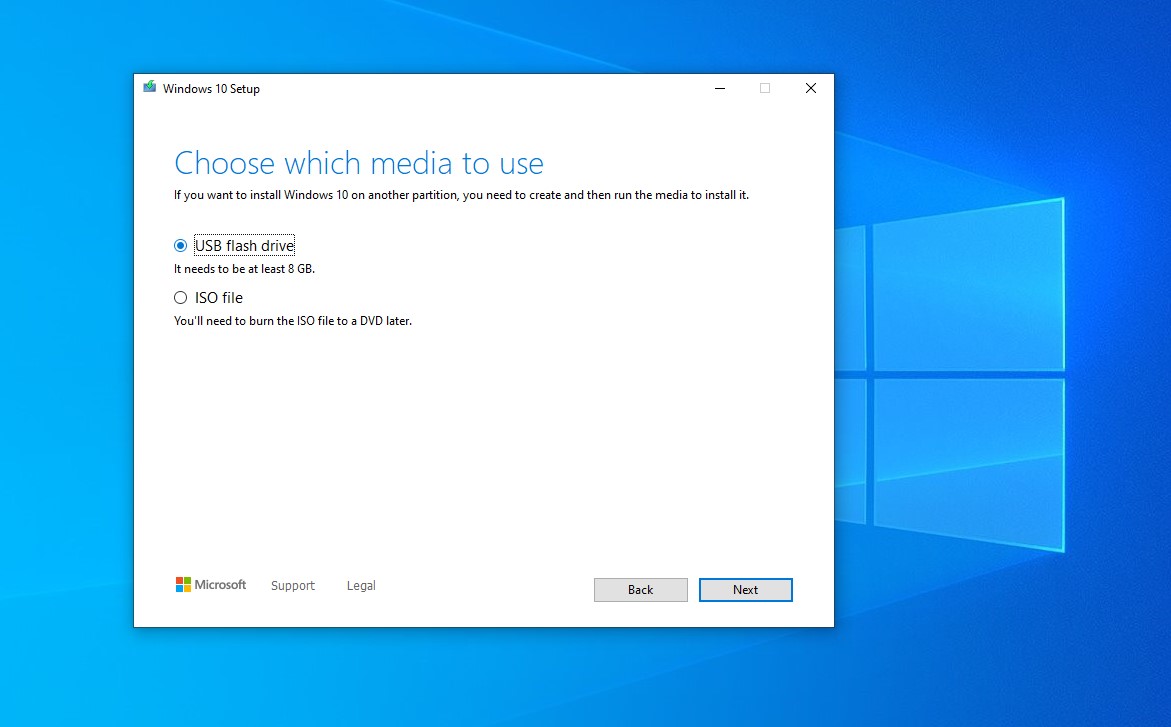
While a system image is crucial for a full restore, you might also want to download a Windows 10 ISO file. This is essentially the installation files for Windows 10 and can be useful if you ever need to perform a clean installation of Windows 10 in the future (though our primary goal is to move you to Windows 11). Here's how:
- Go to the Official Microsoft Download Page: Visit the Microsoft website and search for "Download Windows 10 ISO" to find the official download page.
- Select Your Windows 10 Edition: Choose the specific edition of Windows 10 you are currently using (e.g., Windows 10 Home, Windows 10 Pro). Click "Confirm."
- Choose Your Language: Select your preferred language from the dropdown menu and click "Confirm."
- Download the Correct Version (64-bit or 32-bit): You'll see links to download the 64-bit and 32-bit versions. Most modern computers use the 64-bit version. If you're unsure, search for "System Information" in your Start Menu and look for "System type." Click the appropriate download button to save the ISO file to your computer.
Important Note: The Windows 10 ISO file is the installation media for Windows 10. It does not contain your personal files or installed applications. You still need to back those up using the system image method or by manually copying them to an external drive or cloud storage.
Step 2: Embracing the Future - Upgrading to Windows 11
With your Windows 10 system safely backed up, you can now proceed with the upgrade to Windows 11.
Checking if Your PC is Ready for Windows 11
First, you need to ensure your computer meets the minimum system requirements for Windows 11. Microsoft provides a handy tool for this:
- Download the PC Health Check App: Search for "Windows PC Health Check app" on the Microsoft website and download the installer.
- Install and Run the App: Follow the instructions to install the app and then open it.
- Run the Compatibility Check: The app will have an option to "Check now" for Windows 11 compatibility. Click it, and the app will tell you if your PC meets the necessary specifications.
Performing the Upgrade
If your computer is compatible, here's how to start the upgrade process:
- Ensure a Stable Internet Connection: The upgrade involves downloading a significant amount of data.
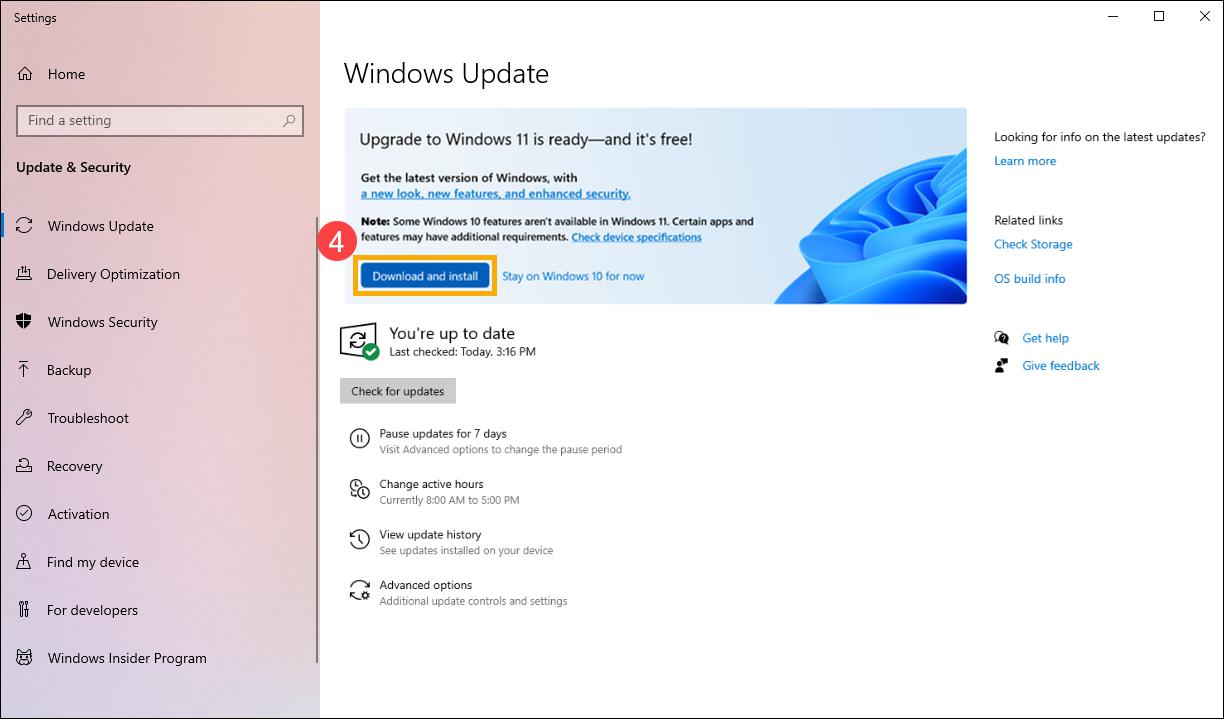
- Open Windows Update Settings: Go to Settings > Update & Security > Windows Update.
- Check for Updates: Windows Update will scan for available updates, including the Windows 11 upgrade if your system is eligible.
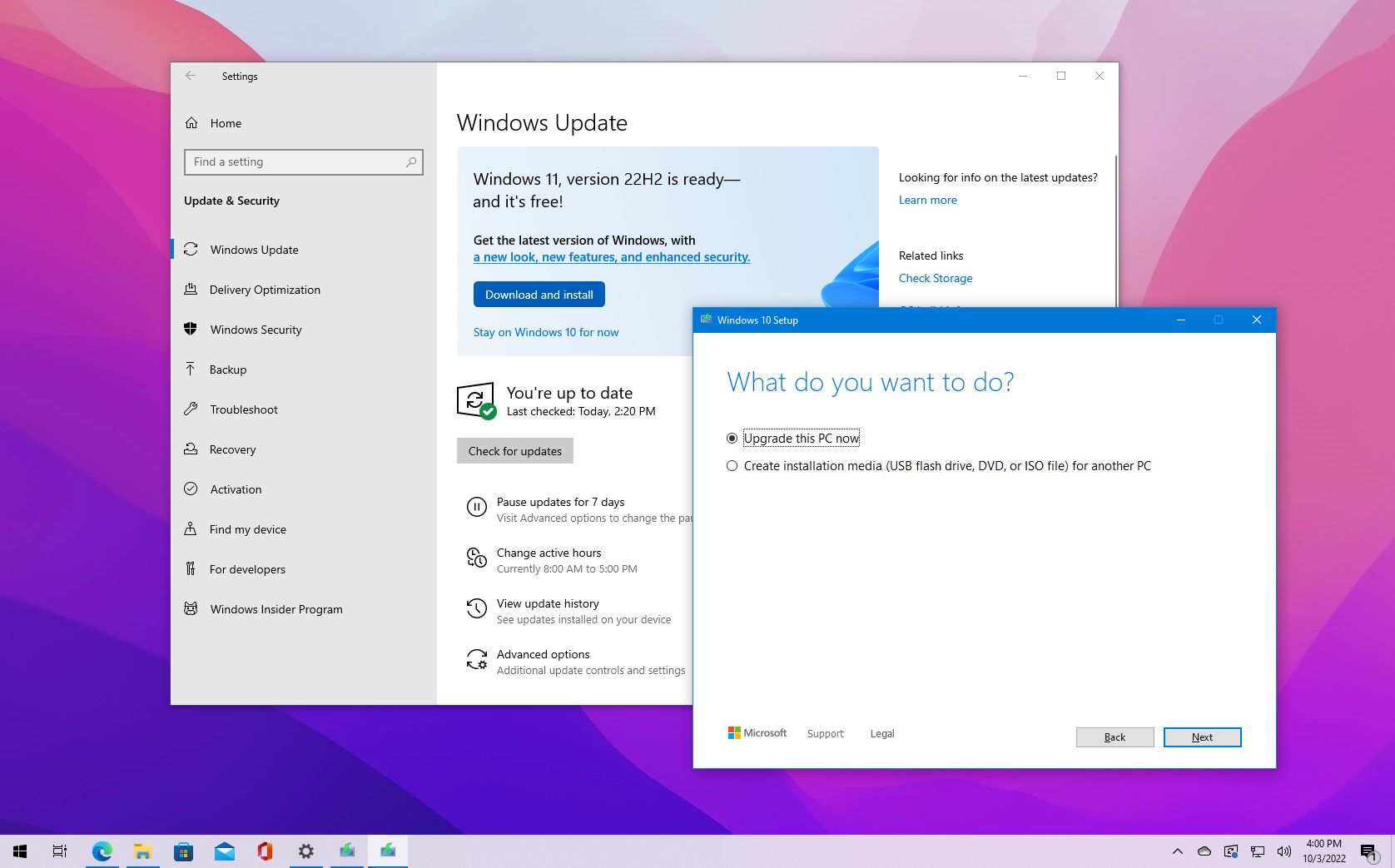
- Look for the Upgrade Option: If your PC is ready, you should see a notification indicating that "Upgrade to Windows 11 is ready - and it's free!" Click "Download and install."
- Follow the On-Screen Prompts: The upgrade process will guide you through downloading, preparing, and installing Windows 11. This will take some time, so please be patient and ensure your computer remains powered on throughout the process.
- Review Your Privacy Settings: Once the installation is complete, Windows 11 will ask you to review your privacy settings. Take a moment to configure these according to your preferences.
What If the Upgrade Isn't Offered in Windows Update?
If you don't see the Windows 11 upgrade in Windows Update, you have a couple of options:
- Wait: Microsoft is rolling out Windows 11 in stages. It might take some time for the upgrade to become available for your specific hardware configuration.
- Use the Windows 11 Installation Assistant: Microsoft offers a tool called the "Windows 11 Installation Assistant" that can help you perform the upgrade if your system meets the requirements. You can download this from the Microsoft software download page.
What Happens If You Don't Upgrade? Understanding the Risks
It's crucial to understand the implications of continuing to use Windows 10 after the end-of-support date:
- Increased Security Risks: Without regular security updates from Microsoft, your computer will become increasingly vulnerable to new viruses, malware, and other online threats. This is the most significant risk.
- Software Incompatibility: New software and updates for existing programs will likely be optimized for newer operating systems. You may encounter compatibility issues or find that some new applications won't run on Windows 10.
- Performance Degradation: Over time, the lack of updates and potential incompatibility with newer hardware could lead to performance issues and a less efficient computing experience.
- No More Technical Support: Microsoft will no longer provide technical support for Windows 10 after October 2025. If you encounter problems, you'll need to troubleshoot them on your own.
- Compliance Concerns (for Businesses): For businesses, using an unsupported operating system can lead to non-compliance with industry regulations that mandate the use of secure and up-to-date systems.
Related: Related: Free up disk space and boots system performance.
Extended Security Updates (ESU) - A Paid Option for Continued Support
For those who absolutely cannot upgrade to Windows 11 or replace their hardware before the deadline, Microsoft will offer an Extended Security Updates (ESU) program for Windows 10. This is a paid subscription service that will provide Critical and Important security updates for a limited time after the official end of support.
Here's what you need to know about ESU:
- It's a Temporary Solution: ESU is not intended as a long-term fix but rather a way to provide essential security updates while you plan and implement your transition to a supported operating system.
- It Comes at a Cost: For individual users, the ESU program will be available as a yearly subscription. The initial price for the first year is expected to be around $30 USD, and this cost will likely increase in subsequent years if you continue to subscribe.
- Limited Scope of Support: ESU only includes security updates deemed "Critical" and "Important" by Microsoft. It does not include new features, non-security fixes, or technical support.
- Eligibility Requirement: To be eligible for ESU, your Windows 10 device must be running the latest supported version of Windows 10 (currently Version 22H2).
While the Extended Security Updates program offers a way to receive security updates for a limited time after the end of support, it's important to understand that it's a paid, temporary solution with limited support. Upgrading to Windows 11 or investing in new, compatible hardware remains the most secure and cost-effective long-term strategy.
Considering Alternatives? Exploring Linux with AnduinOS
For some of you who might not be ready to upgrade to Windows 11 or prefer to avoid the cost of Microsoft's Extended Security Updates, exploring alternative operating systems like Linux could be an option. One interesting distribution in this space is AnduinOS.
What is AnduinOS?
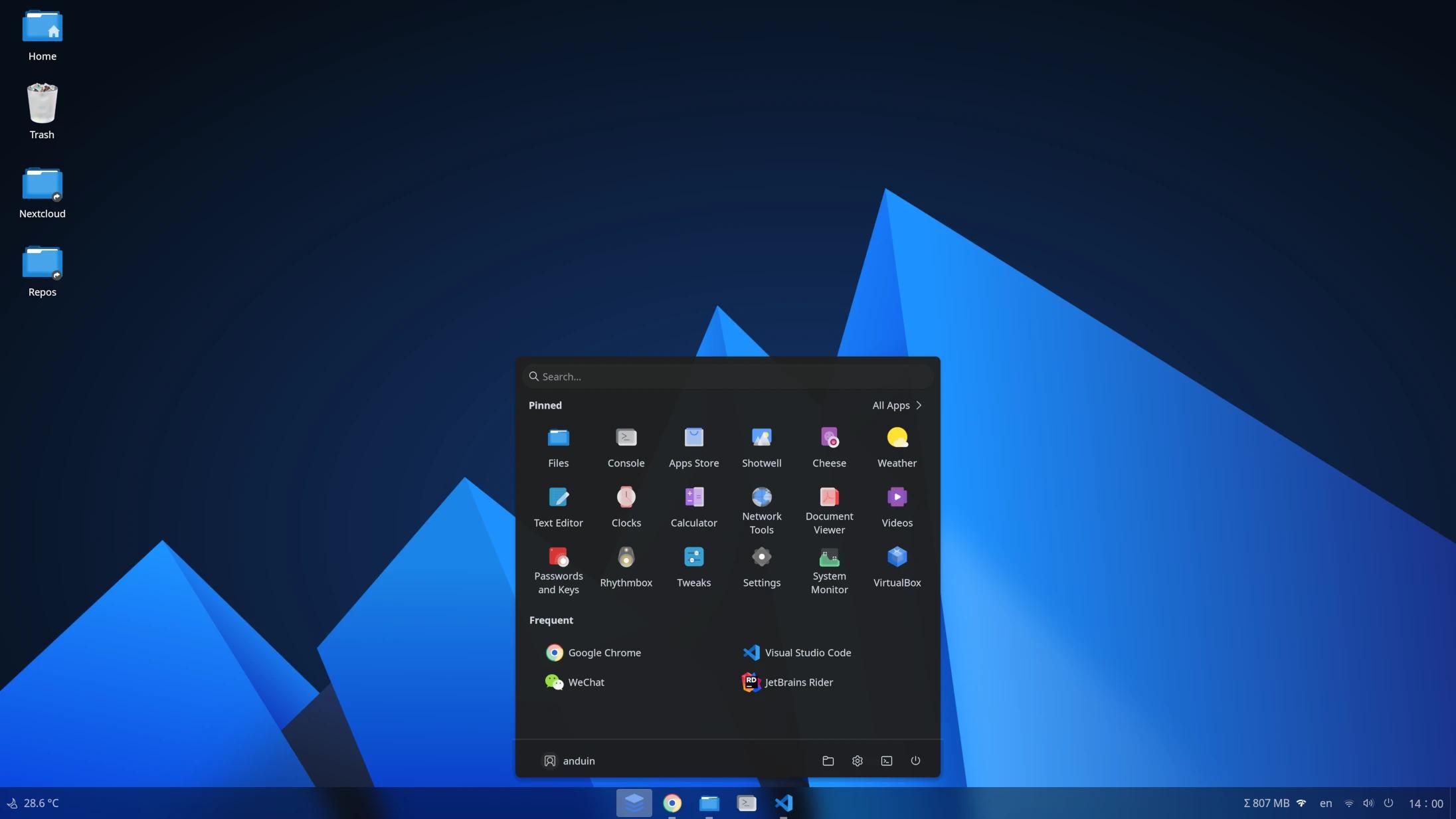
AnduinOS is a Linux distribution based on the popular Ubuntu system. Its unique feature is its user interface, which is specifically designed to look and feel very similar to Windows 11. This can make the transition to Linux much easier for long-time Windows users as it reduces the initial learning curve associated with new desktop environments.
Why Might AnduinOS Be an Option?
- Familiar Interface: The resemblance to Windows 11 can make you feel right at home, with a similar taskbar layout, application menu, and window styling.
- Continued Security Updates: As it's built on Ubuntu 25.04, AnduinOS will receive security updates from the Ubuntu project until Ubuntu 25.04 reaches its end of life in April 2026. This means you'll continue to get important security patches for the operating system itself for a while longer than an unsupported Windows 10 system.
- Free to Use: Like most Linux distributions, AnduinOS is free to download and use, saving you the cost of an OS upgrade or a paid extended support subscription.
- Potentially Lighter on Resources: Linux can often run efficiently on older hardware that might struggle with the latest versions of Windows, potentially giving older PCs a new lease on life.
- Modern Application Management: AnduinOS uses Flatpak for installing applications. Flatpak offers a sandboxed environment for apps, which can enhance security and make managing software easier.
Important Considerations Before Switching to AnduinOS:
- Support Lifecycle: While Ubuntu 25.04 provides a base of updates until April 2026, the long-term support and development of AnduinOS itself depend on its dedicated developers. As a newer distribution, its future is less established than more mature Linux options.
- Software Compatibility: While many popular applications have Linux versions or alternatives, some specific Windows-only software might not run directly on AnduinOS. You might need to explore compatibility tools like Wine, which aren't always perfect.
- Linux Fundamentals: Despite the familiar look, Linux operates differently from Windows under the hood. You'll still need to learn some new ways of managing your system and installing software.
- Hardware Compatibility: While generally good due to its Ubuntu base, compatibility issues with very specific or niche hardware can sometimes occur with Linux.
- Community Support: The community around AnduinOS is smaller than that of Ubuntu or other major Linux distributions, which might mean fewer readily available online resources for troubleshooting.
Our Recommendation: Try Before You Leap
If you're curious about AnduinOS, we highly recommend trying it out in a safe environment first:
- Virtual Machine: You can install virtualization software (like VirtualBox or VMware Player) on your Windows 10 PC and install AnduinOS within that virtual environment. This allows you to explore the OS without making any changes to your existing system.
- Live USB: You can also create a bootable USB drive with AnduinOS. This will allow you to run AnduinOS directly from the USB drive without installing it on your hard drive. This is a great way to test hardware compatibility and get a feel for the operating system.
Conclusion on AnduinOS
AnduinOS offers an intriguing pathway for Windows 10 users seeking a free alternative with a familiar feel and continued security updates for a limited time. It can be a viable option for those hesitant about Windows 11 or the cost of extended support. However, it's essential to be aware of its support lifecycle, potential software and hardware compatibility considerations, and the fundamental differences between Linux and Windows. Thorough testing is always recommended before making a full switch.
Official Download Link: https://www.anduinos.com/

Let Us Help You Make the Transition
We understand that upgrading your operating system can seem daunting. Please don't hesitate to reach out to us if you have any questions or need assistance with backing up your Windows 10 system or upgrading to Windows 11. We're here to help ensure a smooth and secure transition for you.
Don't wait until the last minute! Start planning your upgrade today to protect your data and enjoy the benefits of a modern operating system.
Support Team - Gzmato.com

- Windows 10 end of support
- upgrade to Windows 11
- backup Windows 10
- Windows 10 ISO download
- Windows 11 upgrade guide
- Windows 10 extended security updates
- ESU Windows 10
- data backup Windows 10
- Windows 11 compatibility check