How to Use an Old iMac or MacBook as a Display for the New M4 Chip Mac Mini
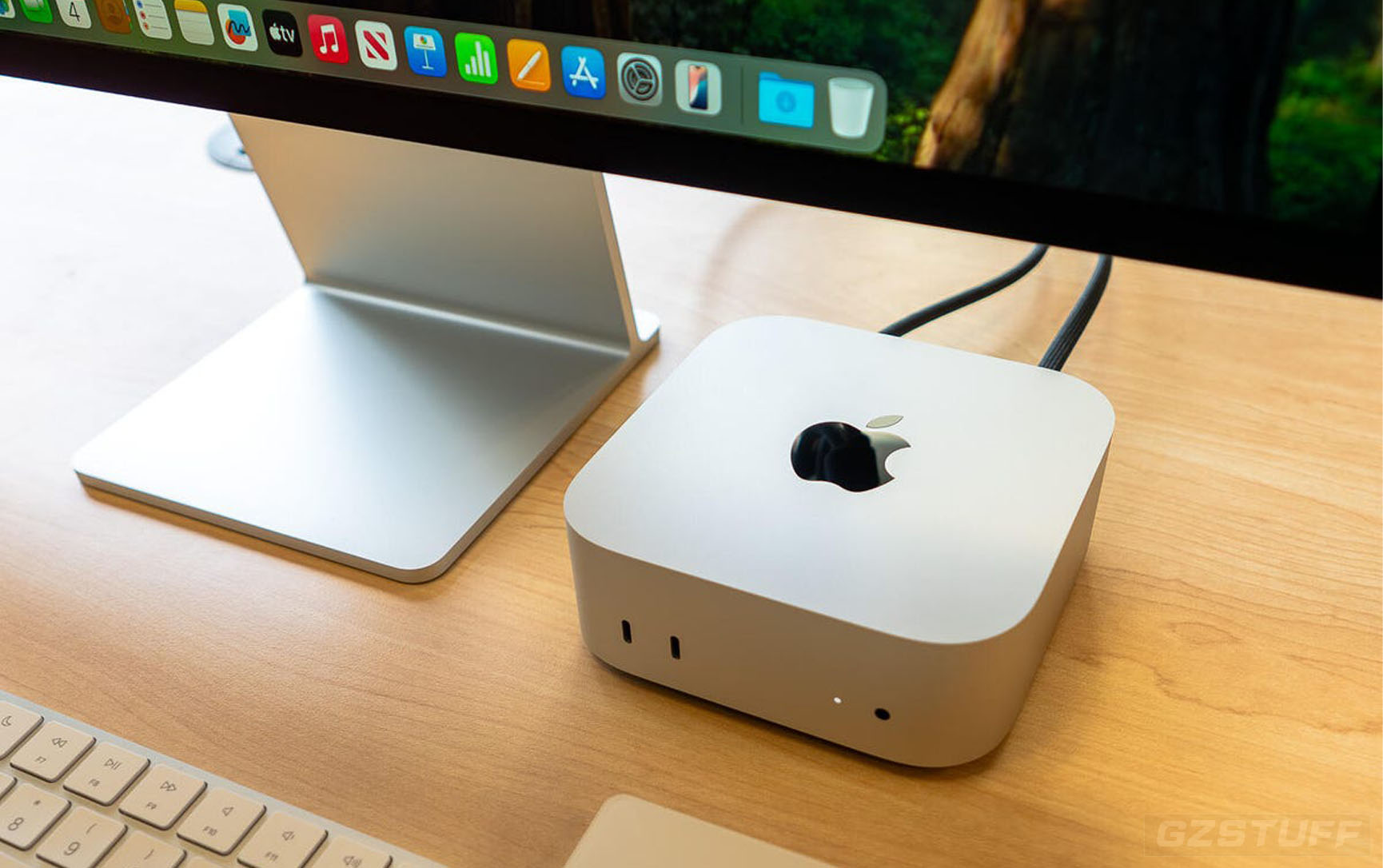
Using an old iMac or MacBook as a display for a new Mac mini with an M4 chip is a great way to repurpose your older device. However, the process depends on whether you have an iMac or MacBook, as the methods differ slightly. Below are the steps for each.
1. Using an Old iMac as a Display for Mac mini
If your old iMac is a 27-inch iMac (2011–2014), you can use Target Display Mode to use it as a monitor. Unfortunately, newer iMac models (after 2014) do not support Target Display Mode.
Steps for iMac (2011–2014)
1. Check compatibility: Ensure your iMac supports Target Display Mode. This works on iMacs from mid-2011 to mid-2014 with Thunderbolt or Mini DisplayPort.
2. Connect the iMac to the Mac mini:
- Use a Thunderbolt cable or Mini DisplayPort to Mini DisplayPort cable to connect the iMac and the Mac mini.
3. Activate Target Display Mode:
- Turn on both the iMac and the Mac mini.
- On the iMac, press Command (⌘) + F2 on the iMac’s keyboard. This will toggle the iMac into Target Display Mode.
- Your Mac mini should now output to the iMac’s display, making the iMac act as an external monitor.
4. Exit Target Display Mode:
- To return to the iMac’s regular display, simply press Command (⌘) + F2 again.
Limitations:
- Target Display Mode only works on specific older iMac models (2011-2014).
- The M4 chip Mac mini and newer Macs do not support Target Display Mode on iMacs made after 2014.
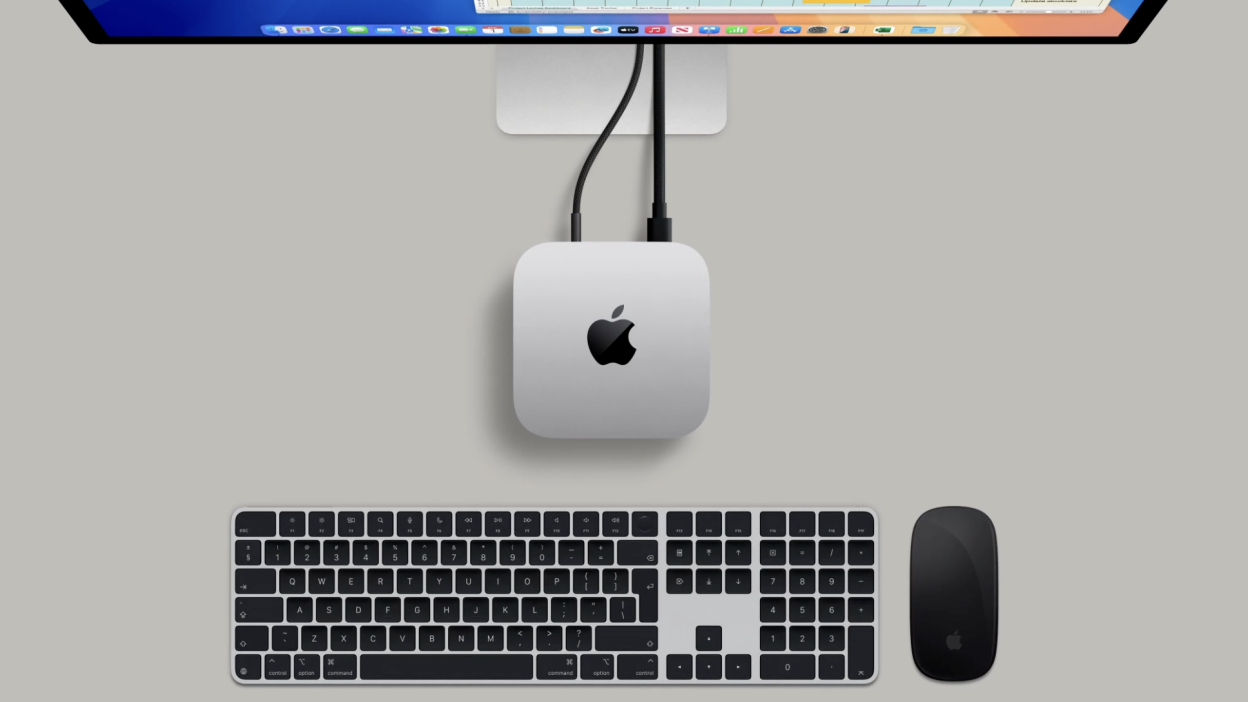
2. Using a MacBook as a Display for the Mac mini (via Screen Sharing)
MacBooks cannot be used as physical displays in the same way as iMacs (via Target Display Mode). However, you can use Screen Sharing or AirPlay to display the Mac mini's screen on your MacBook.
Method 1: Using Screen Sharing
1. Enable Screen Sharing on the Mac mini:
- Go to System Settings on the Mac mini.
- Click on Sharing and turn on Screen Sharing.
2. Connect to the Mac mini from the MacBook:
- On the MacBook, open Finder.
- In the Finder sidebar, you should see your Mac mini listed under Locations.
- Click on your Mac mini and choose Share Screen.
- Enter the username and password for the Mac mini if prompted, and the screen of the Mac mini will be displayed on your MacBook.
Method 2: Using AirPlay (macOS Monterey and later)
If you have a MacBook with macOS Monterey or later, you can use AirPlay to wirelessly share the screen of your Mac mini to the MacBook.
1. Connect both devices to the same Wi-Fi network.
2. Enable AirPlay on the Mac mini:
- Click on the AirPlay icon (screen with a triangle) in the menu bar of the Mac mini.
- Select your MacBook from the list of available AirPlay devices.
- The Mac mini’s screen will now be mirrored to the MacBook.
3. Use your MacBook as a secondary display (if you want to extend the display instead of mirroring):
- In System Settings on the Mac mini, go to Displays and select AirPlay Display.
- Choose your MacBook and select the "Extend Display" option to use it as a second monitor.
Limitations:
- Screen Sharing is not as fluid as using a physical monitor, and there may be slight latency or a decrease in visual quality.
- AirPlay works well for mirroring or extending displays but may not be suitable for fast-paced gaming or high-performance tasks due to latency.
3. Third-Party Solutions for Any MacBook or iMac
If your devices are not compatible with Target Display Mode or Screen Sharing, you can use third-party solutions like Luna Display or Duet Display. These apps allow you to turn any Mac (or even an iPad) into a secondary display for your Mac mini.
- Luna Display: Requires a hardware adapter that connects to your Mac mini and allows wireless or wired display connections to your MacBook or iMac. It supports a smooth experience and is ideal for productivity.
- Duet Display: Turns your MacBook or iMac into a secondary display using a wired or wireless connection. It offers a more responsive display than Screen Sharing.
Summary:
- Old iMac (2011–2014): Use Target Display Mode via Thunderbolt or Mini DisplayPort cable to use the iMac as a display for the Mac mini.
- MacBook: Use Screen Sharing or AirPlay to display the Mac mini’s screen on the MacBook. Alternatively, use third-party solutions like Luna Display or Duet Display for better performance.
For the best results, especially in terms of performance and resolution, Target Display Mode with an iMac is the most seamless method, while Screen Sharing or AirPlay is ideal for MacBooks.