HOW TO: Master Your AI Smartphone for Maximum Privacy and Utility

Introduction: The Double-Edged Sword of On-Device AI
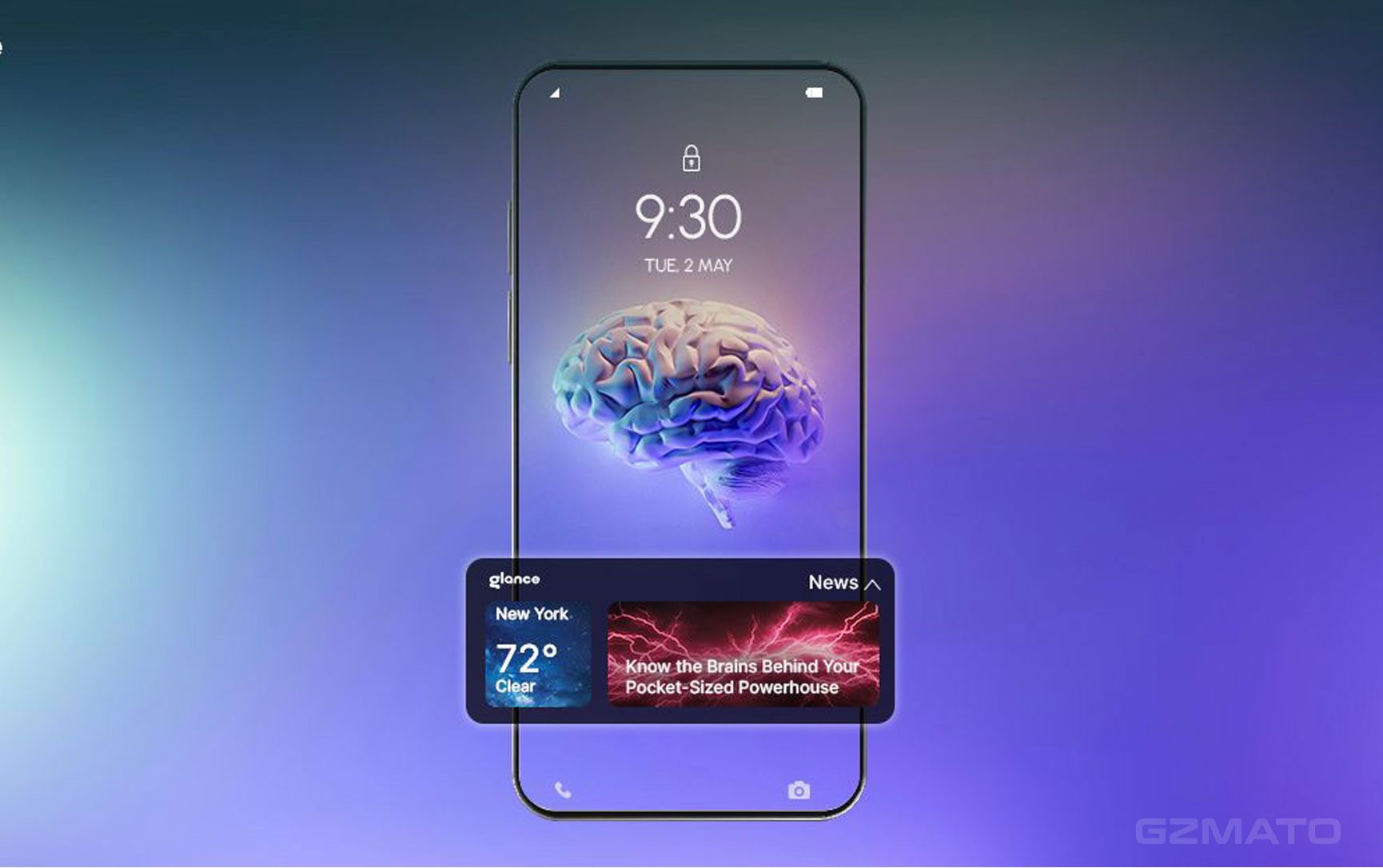
The new generation of smartphones, often dubbed "AI Phones" or "Intelligent Devices," promises an era of seamless convenience. Imagine your device not just reacting to your commands, but predicting your needs: scheduling complex meetings, summarizing emails, and editing photos in real-time, all powered by sophisticated AI Agents.
This is the promise.
However, this intelligence requires one crucial thing: your data. While on-device AI offers privacy benefits by processing data locally, many features still rely on cloud services, turning your pocket companion into a potential data funnel. The key to truly mastering your AI smartphone is learning how to manage its permissions, set boundaries, and ensure it works for you, not against you.
Here is your essential guide to taking back control.
Section 1: The AI Permission Checklist (Your First Line of Defense)
The most common entry point for data leakage isn't malware; it's the permissions you grant without thinking.
1.1 Audit Your "Listening" Apps
Many AI features, particularly those offering "proactive assistance," require constant access to your microphone or camera.
- HOW TO Do It: Go to your phone’s System Settings > Privacy > Permission Manager. Check the list for Microphone and Camera access. Look for any AI-related apps or features (e.g., AI Assistant, smart widgets) and, if you don't use them constantly, change the permission from "Always Allow" to "Ask Every Time" or "While Using the App."
1.2 Differentiate On-Device vs. Cloud AI
This is the single most important privacy distinction.
- On-Device AI: Processing happens directly on your phone’s chip (like the NPU/AIE), meaning your data never leaves the device. This is ideal for privacy-sensitive tasks.
- Cloud AI: Data (voice clips, text, images) is sent to a remote server for processing, introducing a privacy risk.
- HOW TO Check: In the settings for features like real-time translation or image editing, look for options labeled "Process Locally" or "Enhanced Privacy Mode." Always choose the local processing option when available for sensitive information.
1.3 Restrict Location Data for Non-Essential AI
Proactive AI suggestions (e.g., "traffic is heavy for your usual route") are helpful, but they rely on constant location tracking.
- HOW TO Control: Check your location permissions for any app that you suspect is using AI for proactive features. If the app is not a mapping tool, set its location access to "Never" or at least restrict it to "While Using the App."
Section 2: Taming the AI Agents and Assistants
An AI Agent is more than a simple assistant; it’s an autonomous piece of software that can string together actions. You need to give it firm rules.
2.1 The "Confirmation" Rule
The true power—and danger—of an AI Agent is its ability to act without your input (e.g., automatically replying to texts or making online purchases).
- HOW TO Set Boundaries: Immediately access your main AI Assistant’s settings (Siri, Google Assistant, etc.) and look for "Agent Settings" or "Autonomous Actions." Ensure that you enable settings that require confirmation for all actions that involve money, sending messages, or changing critical system configurations. Treat it like a child learning to drive: put the brakes on their side.
2.2 Clear AI History Regularly
Your AI assistant learns from every question, every command, and every correction. This conversation history is stored to "improve the model."
- HOW TO Delete It: Most platforms provide a straightforward way to manage this data. Navigate to the Activity Log or History section of your AI Assistant (often accessible via your main account dashboard online or in the app). Make it a habit to delete this data every few weeks. This prevents a growing historical profile of your personal life from being stored on external servers.
Section 3: Performance Tips for AI-Heavy Devices
AI functions can be demanding on your phone’s hardware, often leading to reduced battery life.
3.1 Identify Resource Hogs
Some AI features, like continuous "always-on display" monitoring for gestures or background indexing for photo search, constantly consume power.
- HOW TO Optimize: Go to Battery Settings and check the list of apps and processes consuming the most energy. If a background AI process is unexpectedly high, you can often go into the specific app settings and turn off the 'always-on' or 'background processing' toggle for that feature.
Conclusion: Taking Back Control
The AI smartphone is here to stay, but its utility should not come at the expense of your privacy. By consciously auditing permissions, differentiating local vs. cloud processing, and setting strict boundaries for your AI Agents, you move from being a passive user to an informed master of your technology.
Action Item: Take 5 minutes right now to check the Microphone permissions on your most-used apps. Your data security starts with that single tap.


- How to use AI phone
- AI smartphone tips
- AI privacy control
- manage AI permissions
- data security on AI devices