Windows 10 Pro Hacks: Get Free Security Updates and Bypass the Media Tool
Windows 10 has officially reached its End of Support (EoS) date of October 14, 2025. While many users face the tough choice between upgrading to Windows 11 or accepting a vulnerability risk, savvy users know there are still ways to navigate the post-EoS landscape and maintain control over their systems.
This article details two essential, pro-level tips every Windows 10 user should know: how to secure the crucial first year of Extended Security Updates (ESU) for free, and a clever browser trick to download the official ISO file directly, bypassing the Media Creation Tool entirely.
Part 1: The ESU Lifeline — Securing One Year of Free Updates
Microsoft’s Extended Security Updates (ESU) program is the official, paid way for individuals and organizations to continue receiving critical and important security patches for up to three years after the EoS date.
However, recognizing the vast number of personal devices that cannot upgrade to Windows 11, Microsoft created a free path for consumers to access the first year of ESU. This method hinges on the company's drive to increase cloud service adoption.
The Free ESU Condition: Cloud Sync Enrollment
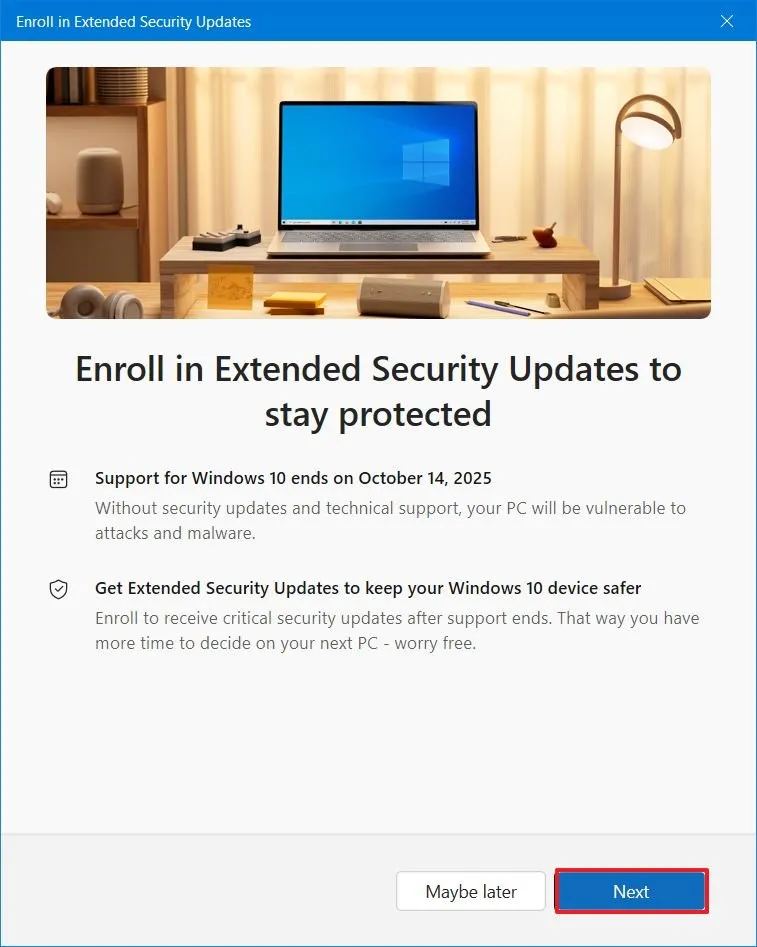
To qualify for the free first year of ESU (extending security patches until October 2026), personal users must agree to use their Microsoft Account and enable cloud backup features.
How to Qualify:
- Use a Microsoft Account: Your Windows 10 device must be signed in with a Microsoft Account (MSA), not a local account.
- Enable Windows Backup: You must utilize the built-in Windows Backup feature to sync your PC settings to the cloud (OneDrive).
- Enroll via Windows Update: The enrollment link appears directly in the Settings > Update & Security > Windows Update section on eligible devices running Windows 10, version 22H2. You follow the prompts, which will typically confirm your cloud sync status.
Why this is a Pro Tip: The standard ESU fee is USD 30 for the first year. By linking your Microsoft account and settings to the cloud, you save that expense and gain an essential year of protection against major vulnerabilities. Crucially, Microsoft will perform ongoing checks (potentially requiring you to sign in with your MSA at least once every 60 days) to confirm eligibility.
What ESU Covers: It is vital to remember that ESU only provides critical and important security fixes. It does not include non-security bug fixes, new features, or technical support. It is a necessary stopgap, not a permanent solution.
Part 2: The Insider Trick — Direct ISO Downloads in Your Browser
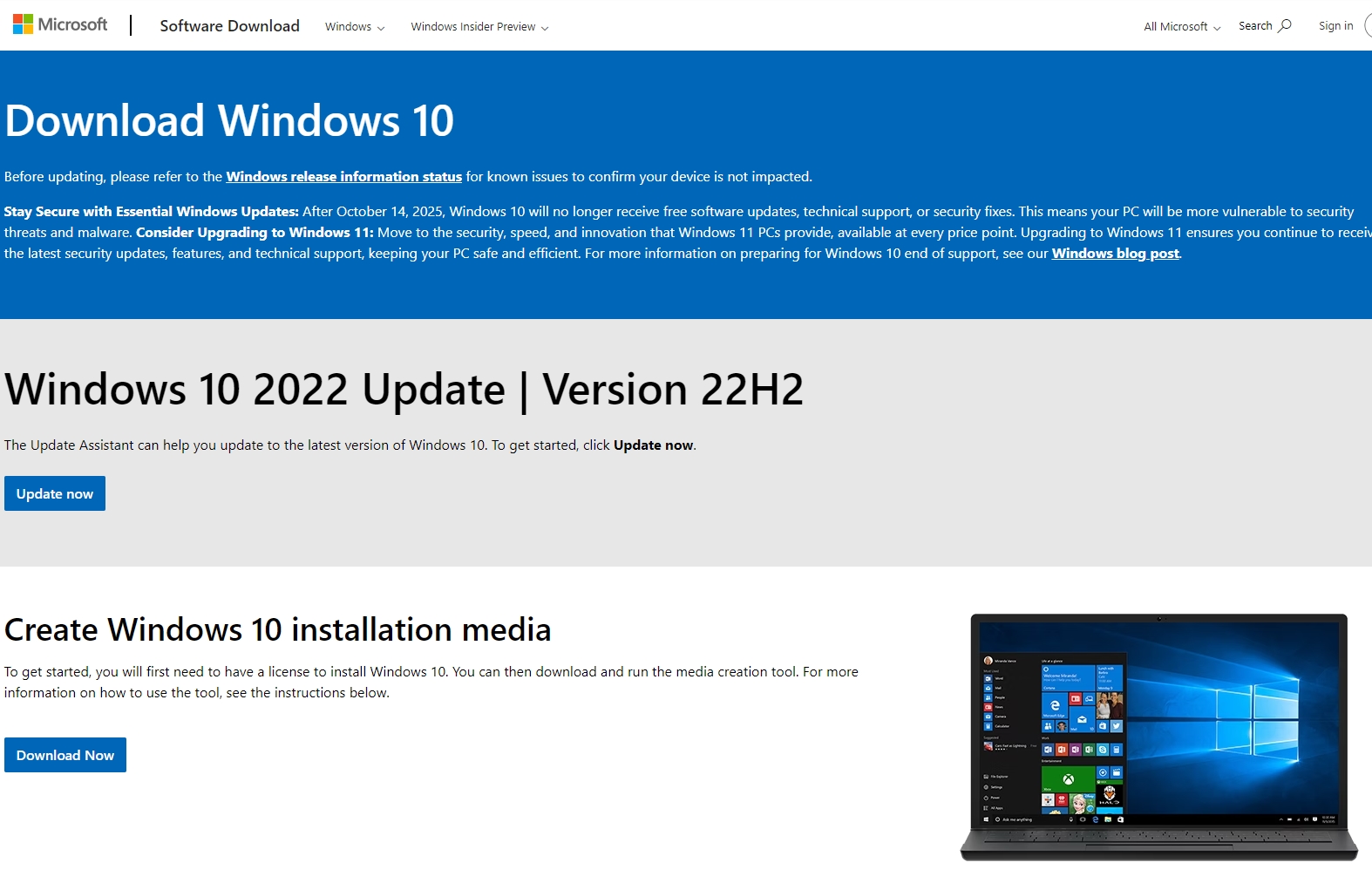
When you visit the official Microsoft Windows 10 download page from a desktop browser, you are typically forced to download the Media Creation Tool (MCT). This tool is fine, but it adds an extra step and takes away your control over the exact ISO file version or location.
There is a simple, effective trick to bypass the MCT and get the direct ISO download links, which is what savvy IT professionals often use.
The F12 Mobile View Hack
The Microsoft server serves different content based on the type of device (User Agent) it detects. Desktop users get the MCT prompt; mobile users get direct ISO links.
Here is the step-by-step process to trick the server:
- Navigate to the Official Page: Open your browser (Chrome, Edge, or Firefox) and go to the official Windows 10 download page.
- Open Developer Tools: Press the F12 key (or Ctrl+Shift+I) to open the Developer Tools panel.
- Toggle Device Emulation: Look for the Device Toolbar or Toggle device emulation icon (it usually looks like a small phone and tablet icon). Click it.
- Select a Mobile Viewport: The main browser window will shrink. In the toolbar that appears, select a mobile device or tablet preset, such as "iPad Air" or a generic "Responsive" view, and ensure the screen size is smaller than a standard desktop monitor.
- Refresh the Page: While still in the mobile emulation mode, refresh the download page (F5).
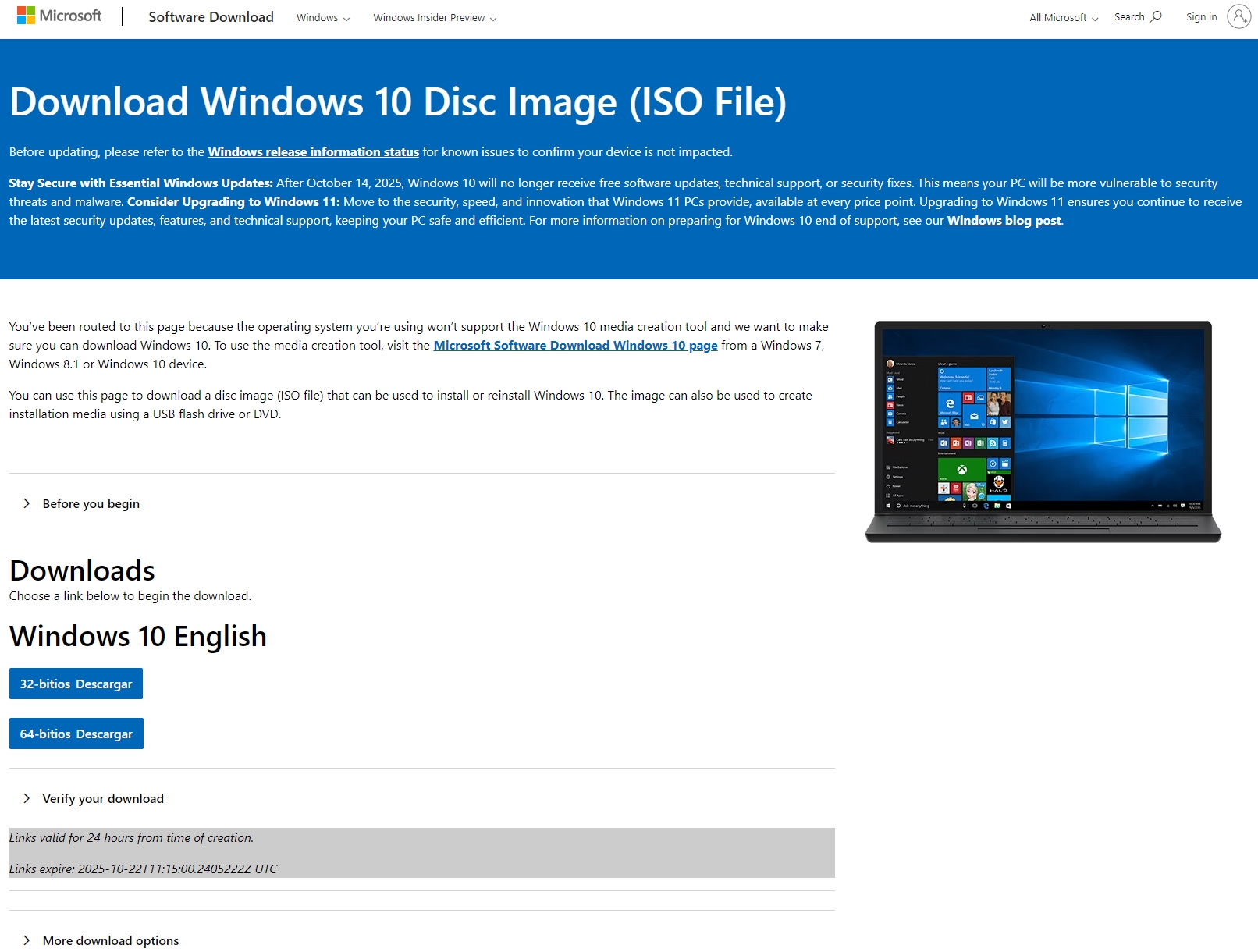
- Direct Download Appears: The page will reload and now display the "Select Edition" and "Select Product Language" dropdown menus, followed by the direct 64-bit Download and 32-bit Download buttons. These links are valid for 24 hours.
Why this is a Pro Tip: This technique allows you to download the pure, self-contained ISO file directly. This is essential for virtual machine installations, clean installs without internet access, or for use with third-party imaging tools, saving you time and giving you full control over the installation media.
Conclusion
As Windows 10 transitions out of mainstream support, maintaining security and control over your installation media becomes more critical than ever. The free ESU enrollment through Microsoft's cloud sync is an excellent way to guarantee protection for another year without cost, while the F12 ISO download trick remains the fastest and most reliable way to obtain official installation files. These simple actions ensure your Windows 10 experience remains stable and secure as you plan your eventual upgrade path.
![Windows 11 October Update Bug Renders Recovery Environment Unusable [Update: October 20, 2025]](https://gzmato.com/media/magefan_blog/windows-11-update-bug-october-2025_gzmato_com_hero.jpg)

- Windows 10 ESU
- free security updates
- Windows 10 ISO download
- Media Creation Tool bypass
- F12 trick
- EoS hacks