How to Bypass Mandatory Network and Microsoft Account (MSA) Login during Windows 11 Installation (OOBE)
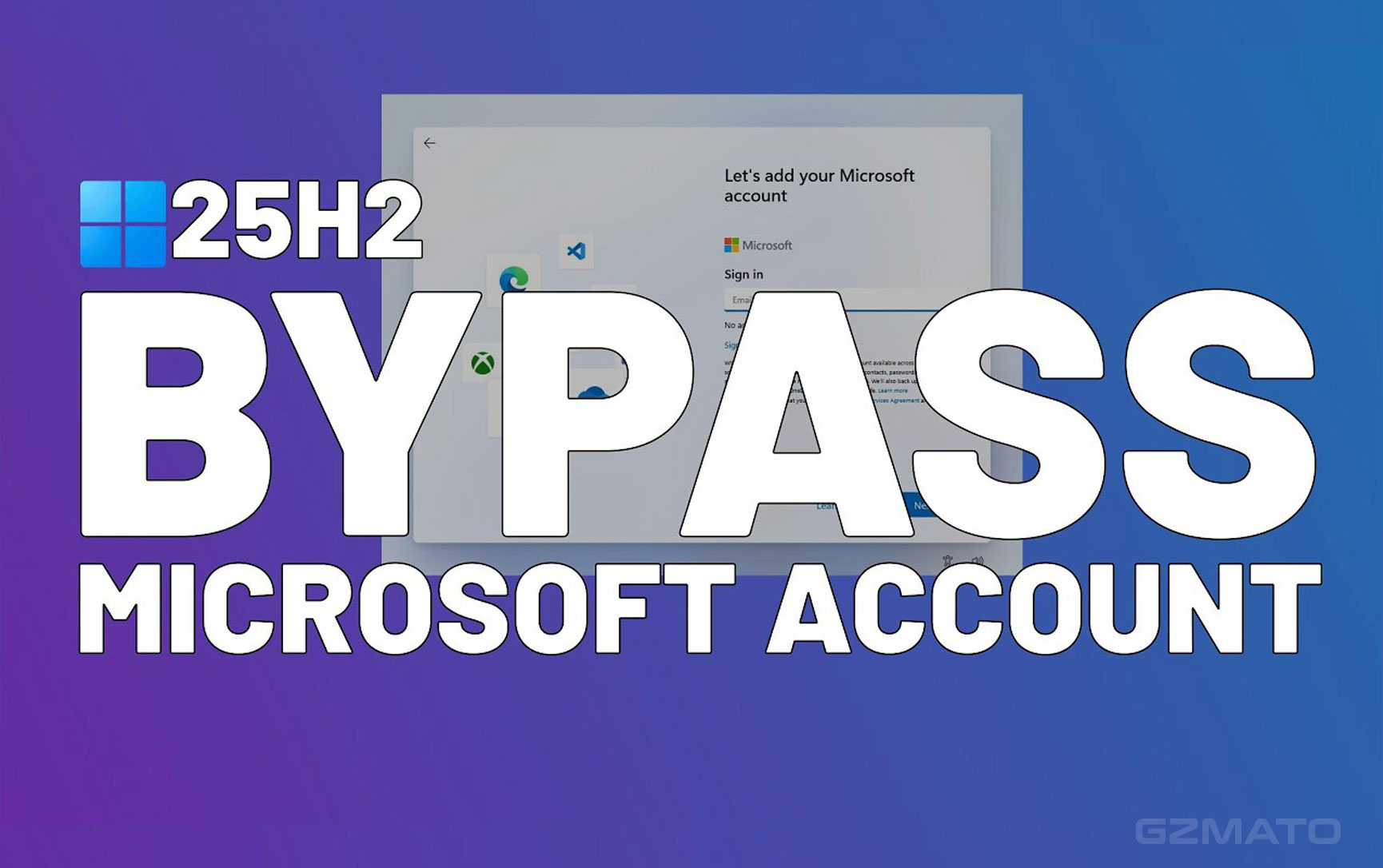
Microsoft has made it mandatory for users of Windows 11 Home and Pro editions to connect to the internet and sign in with a Microsoft Account (MSA) during the "Out-of-Box Experience" (OOBE) setup phase. This prevents users from creating a simple local account directly.
If you prefer to set up your device using a Local Account and skip the required network connection and MSA binding, you can use one of the following technical workarounds.
Method 1: The Fastest and Most Recommended Trick (OOBE\BYPASSNRO Command)
This is the most stable and modern method. It is highly recommended as it directly unlocks the option to create a local account within the OOBE interface on the latest Windows 11 builds.
Step-by-Step Instructions:
- Reach the Network Screen: During the installation process, when you arrive at the screen asking you to connect to the internet (often titled "Let's connect you to a network"), do not connect any Wi-Fi or Ethernet cables yet.
- Open Command Prompt (CMD): Simultaneously press the keyboard shortcut:
Shift + F10. (Note: If you are using a laptop, you may need to pressShift + Fn + F10.) - Execute the Bypass Command: In the black Command Prompt window that appears, carefully type the following command exactly as shown, and then press Enter:
OOBE\BYPASSNRO - System Reboot: The command will execute immediately, and your computer will automatically reboot.
- Create Your Local Account: After the reboot, the system will return to the OOBE phase. When you reach the network connection screen this time, you will see a new option: "I don't have Internet". Click this option, and the system will then prompt you to "Continue with limited setup". Clicking this final link allows you to skip the network connection entirely and proceed directly to creating a username and password for your local account.
Method 2: The Dummy Account Bypass (Older Builds/Specific Cases Only)
This method involves "tricking" the system by attempting to log in with a known non-existent or locked Microsoft Account, forcing the installation wizard to revert to a local setup.
Step-by-Step Instructions:
- Reach the MSA Login Screen: Proceed past the network connection screen (you must be connected for this method to work, or you must have tried and failed to connect).
- Input a Virtual Account: When prompted to sign in with a Microsoft Account, intentionally enter a locked or invalid email address. Common choices used for this bypass include:
- Enter Any Password: Type any arbitrary password and attempt to sign in. The system will correctly display an error message like "Oops, something went wrong" or "Unable to sign in."
- Create Local Account: By clicking "Next" or "Retry," the system acknowledges the failed login attempt and is forced to fall back to the option allowing you to create a local account.
Method 3: Using the Pro Edition's Domain Option (Windows 11 Pro Only)
If you are installing Windows 11 Pro, you can leverage the business setup options to bypass the MSA requirement.
Step-by-Step Instructions:
- Select Setup Type: In the OOBE phase, when the system asks, "How would you like to set up this device?", select "Set up for work or school".
- Choose Login Options: On the subsequent login screen, look for and select "Sign-in options" or a similar prompt.
- Select Local Account: Select the "Offline account" or the "Domain Join" option. Choosing either of these paths will typically bypass the mandatory MSA login, allowing you to establish a local user profile.
Important Note on Persistence:
- Longevity: Microsoft frequently patches these loopholes in major updates. The
OOBE\BYPASSNROcommand is currently the most reliable method, but it is not guaranteed to work indefinitely. - Post-Install: Even if you create a local account, signing into any Microsoft application (such as OneDrive, Office, or the Microsoft Store) will often trigger a strong prompt asking you to convert your local profile to an MSA login. Exercise caution and select the "No, thanks" or "Only use this app" option to maintain your local status.
Our View: Local Account vs. Microsoft Account (Final Recommendation)
Users typically choose to bypass the MSA login for privacy and control. However, for most general users, the convenience offered by the MSA far outweighs that of a local account. Below is a detailed comparison to help you choose:
Account Type Comparison
| Feature | Local Account | Microsoft Account (MSA) |
|---|---|---|
| Core Advantage | Maximum Privacy: Data is stored locally, not uploaded to the cloud. Full Control: No mandatory cloud service integration. | Cloud Integration: Automatic synchronization of settings, passwords, and files. Secure Recovery: Lost passwords are easy to retrieve; supports BitLocker key cloud backup. |
| Main Drawbacks | Function Limitation: Cannot use Microsoft Store, OneDrive, Copilot, or other services. Difficult Recovery: Forgetting the password can result in data loss. | Privacy Concern: Telemetry data and usage habits are collected by Microsoft. Account Lock Risk: If the account is locked by Microsoft, it affects service usage. |
| Recommended Users | Technicians/Developers: Those who require strictly isolated work environments or have extremely high privacy demands. | Everyday Users/Students/Family: Those who require multi-device sync, cloud storage, and robust secure recovery features. |
← *On mobile, swipe left/right to see the full table content.* →
Final Recommendation
If you are a heavy user of the Microsoft ecosystem (OneDrive, Outlook, Office 365, or Xbox), we strongly recommend using a Microsoft Account. While it requires networking during installation, the security (e.g., BitLocker key backup) and cross-device convenience it provides are irreplaceable by a local account.
Only if you have strong privacy demands and are confident in managing and backing up your own system should you use the bypass methods to create a local account.
Important Disclaimer and Final Thoughts
It is crucial to understand that the methods described above use technical workarounds to bypass the intended setup process designed by Microsoft. While effective for power users and those with specific privacy requirements, Microsoft’s official recommendation is to connect the device to the internet and sign in with a Microsoft Account (MSA) to ensure optimal security, cloud backup (BitLocker), and access to core Windows features like the Microsoft Store and Copilot.
The MSA ecosystem offers tangible benefits in terms of data recovery and synchronization, which is why it remains the recommended path for most general users. These bypass methods should be reserved for scenarios where strict offline operation or absolute separation from cloud services is necessary.

- Windows 11 Local Account
- Bypass MSA
- OOBE Bypass
- Windows 11 No Internet
- OOBE\BYPASSNRO