The Search is Over: Microsoft Swaps Windows 11 Search Box for Copilot
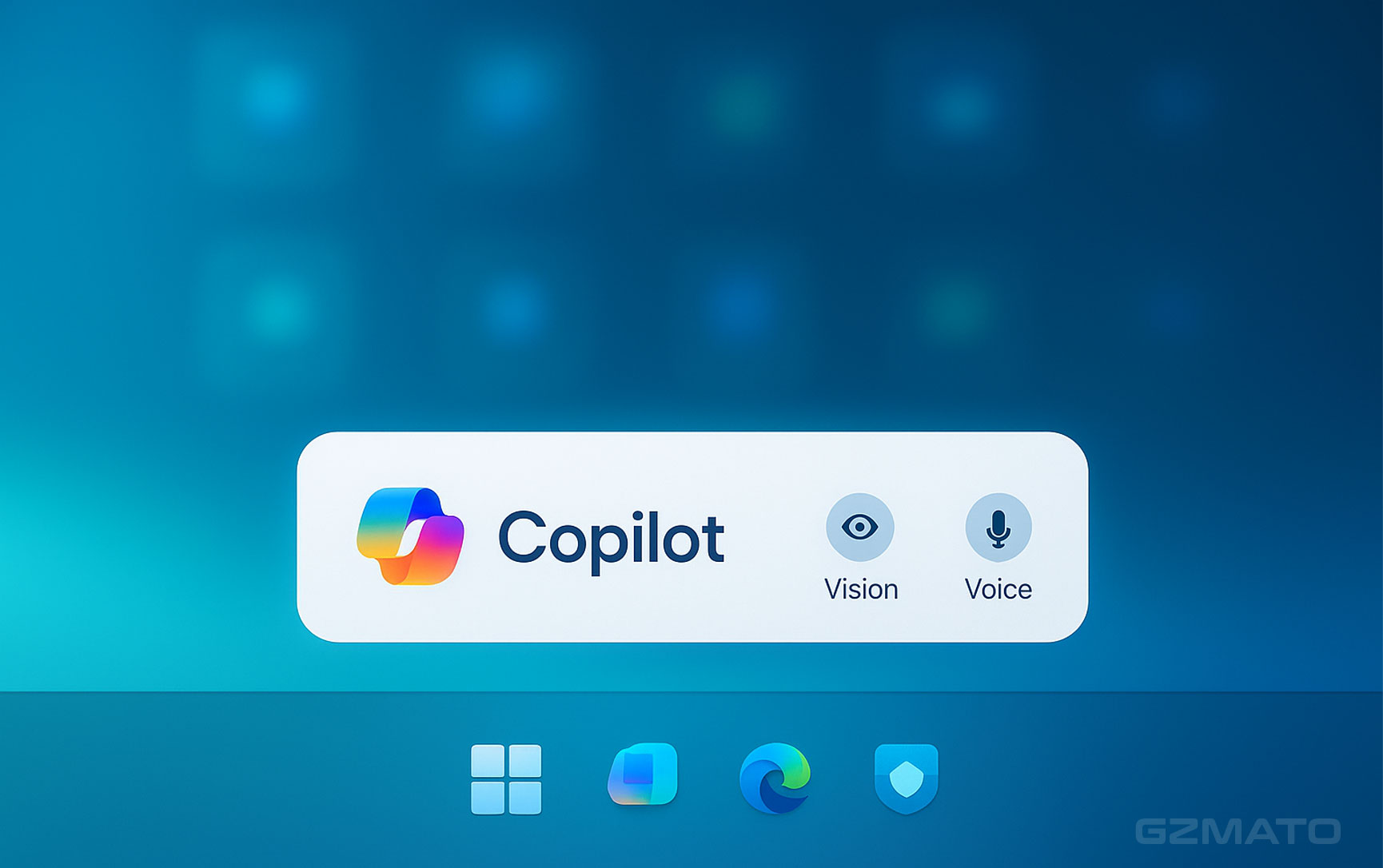
Microsoft has just announced one of the most significant user experience changes to the Windows 11 taskbar since the OS launched: the traditional search box is making way for the Copilot AI chat interface.
This move signals a definitive push by Microsoft to establish Windows not just as an operating system, but as a platform defined by AI-first interaction. While this shift is designed to make "daily interactions into efficient, convenient experiences," users are rightly asking: Is this a genuine leap in productivity, or simply more taskbar clutter?
Here is what you need to know about the upcoming update, the underlying technical assurances, and the true impact on your workflow.
1. The Transformation: Search Box Becomes AI Portal
For years, the taskbar search box has served a single purpose: quickly finding local files, apps, or launching a web query. The new Copilot integration, which will roll out as a preview in the coming weeks, fundamentally changes this relationship.
The New Mandate: Microsoft states the change aims to make the taskbar a "dynamic center." When enabled, the search box instantly transforms into the Copilot UI, integrating two distinct functions:
- Generative AI Chat: Standard Copilot functionality, assisting with writing, summarizing, or complex queries.
- Local Contextual Search: The AI can still handle local file and application searching, which is crucial for quick navigation.
The distinction is clear: Microsoft is optimizing for intent-driven conversation over keyword-driven retrieval. The experience is optional, but given Microsoft’s track record, it’s clear where the future of Windows interaction lies.
2. Technical Assurance: The Existing API Safeguard
One of the most important points for power users and IT professionals to note is Microsoft’s explicit statement regarding application access:
"This new experience will not automatically grant Copilot access to the user's applications or files, instead utilizing the existing Windows search API to display results."
This commitment provides a layer of reassurance. By piggybacking on the established Windows Search API, Microsoft is not introducing a brand-new data harvesting pipeline under the guise of an AI feature. For users like yourself, who focus heavily on server security and permissions (e.g., in a Wordpress environment), this means:
- No New Major Permission Overhaul: Copilot's ability to find local files is constrained by the same permissions structure already enforced by the Windows Search Indexer.
- Local Processing Clarity: The reliance on the existing API suggests the initial file discovery process remains relatively local, even if the subsequent AI query about that content involves cloud processing.
This transparency, while welcome, doesn't negate the core shift: an AI is now mediating your most fundamental interaction with your own files.
3. The User Dilemma: Efficiency vs. Friction
The decision for users—and whether to enable the optional feature—boils down to a trade-off:
| Old Taskbar Search (Frictionless) | New Copilot Integration (High Utility) |
|---|---|
| Goal: Immediate App/File Launch (Low Friction). | Goal: Contextual AI Assistance (High Utility). |
| Outcome: Simple list of results. | Outcome: Conversational chat and results list. |
| Use Case: Typing "Chrome" and hitting Enter. | Use Case: Asking "Summarize the key points of the quarterly report in my documents folder." |
For quick-launch users who simply type an app name, the Copilot UI adds an unnecessary layer of cognitive load and may feel slower. However, for users who need frequent contextual help or complex file queries, Copilot offers genuine productivity gains, eliminating the need to open a separate browser or AI tool.
Ultimately, the success of this change hinges on how seamlessly Copilot can execute the mundane task of "launching an app" while prioritizing the complex task of "generating content." Microsoft is pushing a powerful new tool, but users will be the final judge of whether the price—the simplicity of the old search box—is worth paying.
- Windows 11 Copilot
- Taskbar Search Replacement
- Microsoft AI
- Windows Search API
- Local File Search
- AI Productivity